
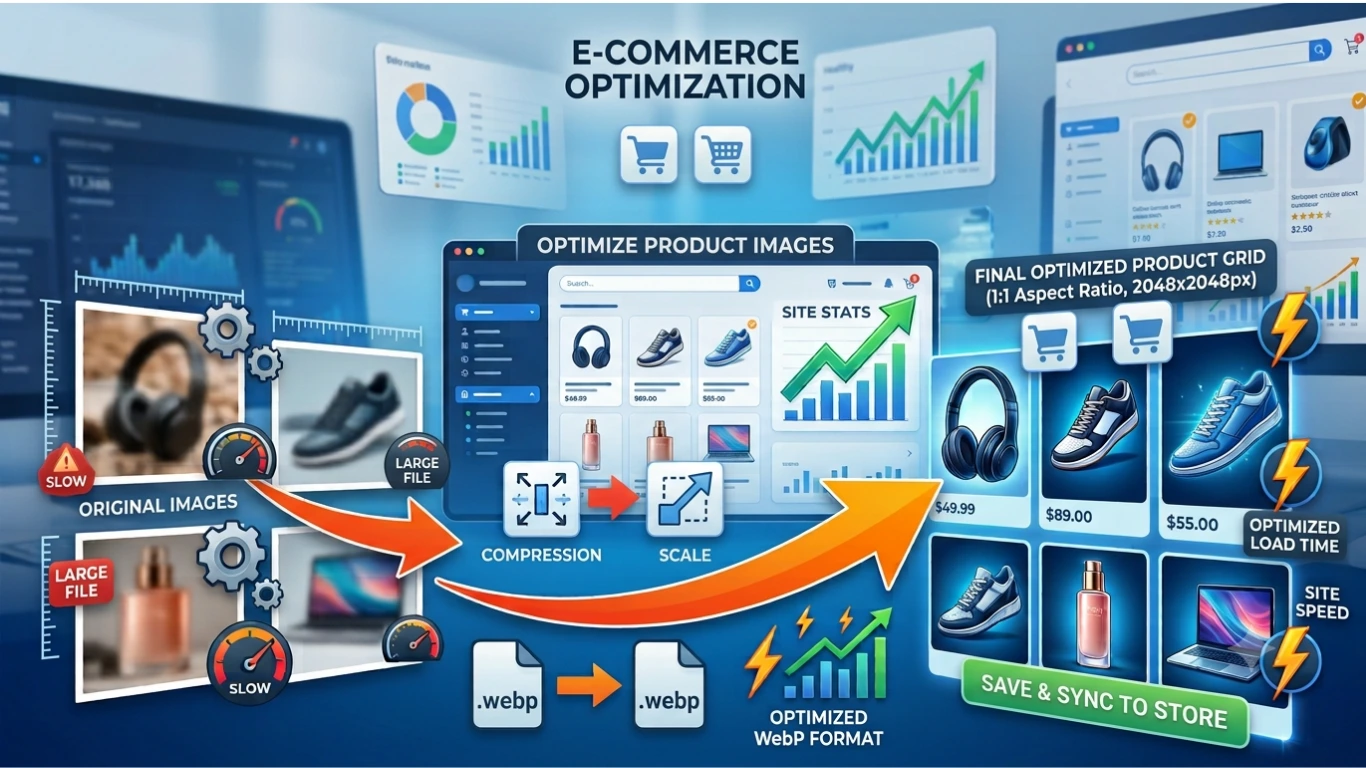
Resize Image for Shopify: The Complete Guide to Perfect Product Images
Resize Image for Shopify: The Complete Guide to Perfect Product Images
High-quality product images are essential for every successful Shopify store. However, uploading oversized images can slow down your website, reduce conversion rates, and negatively impact your search engine rankings.
If you’re looking for the best way to resize images for Shopify, you’re in the right place. This complete guide explains how to resize product images without losing quality, choose the ideal image dimensions, improve page speed, and optimize your Shopify store for both customers and search engines.
Whether you’re launching your first Shopify store or managing thousands of products, these image optimization techniques will help you create a faster, more professional shopping experience.
Table of Contents
- What Does “Resize Image for Shopify” Mean?
- Why Image Size Matters in Shopify
- Benefits of Resizing Images
- Best Shopify Image Sizes
- How to Resize Images for Shopify
- Shopify Image SEO Tips
- Common Image Mistakes
- Frequently Asked Questions
What Does “Resize Image for Shopify” Mean?
Resizing an image for Shopify means changing its dimensions so it fits perfectly on your online store while maintaining excellent visual quality. Instead of uploading large images directly from a smartphone or professional camera, you resize them to match the dimensions required by Shopify.
For example, a DSLR camera may produce images that are 6000 × 4000 pixels. While these images look great, they are much larger than necessary for an online store. Uploading oversized images increases page load times and uses more bandwidth without improving the customer experience.
A properly resized Shopify product image loads faster, looks professional on every device, and helps improve your store’s performance.
Always resize your product images before uploading them to Shopify. Smaller, optimized images improve website speed without reducing visual quality.
Why Image Size Matters in Shopify
Many Shopify store owners focus on product descriptions, pricing, and marketing but overlook image optimization. In reality, product images have a direct impact on user experience, SEO, and sales.
Large images increase page size, making product pages slower to load. Even a one-second delay can cause visitors to abandon your store before completing a purchase.
Optimized images create a smoother shopping experience while helping your website perform better in search engines.
How Large Images Affect Your Store
- Slow product pages
- Higher bounce rates
- Poor mobile performance
- Lower conversion rates
- Reduced Core Web Vitals scores
- Longer loading times
- Poor customer experience
How Properly Resized Images Help
- Faster loading speed
- Better mobile browsing
- Higher customer satisfaction
- Improved Shopify SEO
- Better Google rankings
- Lower bandwidth usage
- Professional-looking product pages
Benefits of Resizing Images for Shopify
Resizing product images isn’t just about reducing file size—it’s about creating a faster, more profitable online store.
1. Faster Website Speed
Smaller image files load much faster than oversized originals. Faster websites improve user experience and reduce bounce rates.
2. Better Shopify SEO
Google considers page speed when evaluating websites. Optimized images help improve page performance, increasing your chances of ranking higher in search results.
3. Improved Mobile Shopping
More than half of online shoppers browse using mobile devices. Optimized images help pages load quickly even on slower mobile networks.
4. Higher Conversion Rates
Customers are more likely to purchase from fast, professional-looking websites. Faster loading pages reduce friction during the buying process.
5. Better Core Web Vitals
Large product images are often the biggest element on a page. Optimizing them can improve Largest Contentful Paint (LCP), one of Google’s Core Web Vitals.
6. Reduced Storage and Bandwidth
Optimized images consume less storage space and bandwidth, helping reduce hosting costs while improving overall website performance.
Resizing images before uploading them to Shopify is one of the simplest ways to improve website speed, enhance user experience, and support better search engine rankings.
Who Should Resize Shopify Images?
Image optimization is important for almost every Shopify business, regardless of its size or industry.
- Fashion stores
- Electronics retailers
- Furniture stores
- Beauty and skincare brands
- Jewelry shops
- Home décor businesses
- Print-on-demand stores
- Dropshipping businesses
- Handmade product sellers
- Digital product stores
If your Shopify store relies on product images to attract customers, optimizing those images should be part of your publishing workflow.
Why Use an Online Image Resizer for Shopify?
Instead of installing complex software, many store owners prefer using an online image resizing tool. A browser-based solution is faster, easier to use, and works on any device.
With an online image resizer, you can:
- Resize Shopify product images instantly
- Maintain image quality
- Reduce file size
- Convert images to WebP
- Prepare images for faster page loading
- Optimize images before uploading to Shopify
Try Our Free Shopify Image Resizer
Need to resize images for your Shopify store? Use our free online Image Toolkit to resize, compress, and optimize your product images without losing quality.
✔ Resize Images Online
✔ Compress Images
✔ Convert JPG, PNG & WebP
✔ Fast Processing
✔ No Registration Required
Continue Reading: In the next section, we’ll cover the best Shopify image dimensions, recommended image sizes for products, collections, banners, logos, and slideshows, along with advanced optimization techniques for faster loading and better SEO.
Best Shopify Image Sizes for Every Store
Choosing the correct image dimensions helps your Shopify store load faster while maintaining excellent image quality. Oversized images increase page weight, while very small images may appear blurry on high-resolution screens.
The following recommendations provide an excellent balance between quality and website performance.
| Image Type | Recommended Size | Recommended Format |
|---|---|---|
| Product Image | 1200 × 1200 px | WebP or JPEG |
| Collection Image | 1024 × 1024 px | WebP |
| Homepage Banner | 1800 × 1000 px | WebP |
| Slideshow Banner | 1920 × 1080 px | WebP |
| Logo | 250 × 250 px | PNG or SVG |
| Blog Images | 1200 × 630 px | WebP |
Although Shopify supports large images, uploading properly resized images improves loading speed and creates a better shopping experience.
JPEG vs PNG vs WebP for Shopify
Choosing the right image format is just as important as selecting the correct dimensions.
| Format | Best For | File Size | Recommendation |
|---|---|---|---|
| JPEG | Product Photos | Small | Excellent |
| PNG | Transparent Images | Large | Only When Needed |
| WebP | Most Images | Very Small | Highly Recommended |
| SVG | Logos & Icons | Very Small | Recommended |
Why WebP Is the Best Choice
- Smaller file sizes
- Excellent visual quality
- Supports transparency
- Loads faster than JPEG
- Improves Google PageSpeed scores
- Better Core Web Vitals performance
How to Resize Images for Shopify
Follow these simple steps before uploading product images to your Shopify store.
Step 1: Choose the Correct Dimensions
Resize your product image to approximately 1200 × 1200 pixels unless your theme requires different dimensions.
Step 2: Compress the Image
Reduce the file size while preserving visual quality. A compression level between 70% and 85% usually produces excellent results.
Step 3: Convert to WebP
Whenever possible, convert product images to WebP to reduce page weight and improve loading speed.
Step 4: Rename the File
Use descriptive filenames instead of camera-generated names.
Example
wireless-bluetooth-headphones-black.webp
Step 5: Add ALT Text
Write descriptive ALT text that explains the image naturally.
Example
Black wireless Bluetooth headphones with noise cancellation.
Step 6: Upload to Shopify
Upload the optimized image to your product page and verify that it displays correctly on desktop and mobile devices.
Shopify Image SEO Best Practices
Optimizing images for Shopify helps search engines understand your products while improving the shopping experience for visitors.
Use Descriptive File Names
- white-running-shoes.webp
- wooden-coffee-table.webp
- gaming-keyboard-rgb.webp
Add Meaningful ALT Text
Describe the image naturally using clear language instead of stuffing keywords.
Compress Every Image
Every image uploaded to Shopify should be optimized before publishing.
Use Responsive Images
Responsive images automatically adapt to different screen sizes, improving mobile performance.
Enable Lazy Loading
Lazy loading delays images below the fold until visitors scroll down the page.
Optimize Featured Images
Homepage banners and featured product images are usually the largest elements on a page. Compress them carefully because they have the greatest impact on loading speed.
Improve Shopify Store Speed with Optimized Images
Large images are often the primary reason Shopify stores load slowly.
Optimized images improve:
- Largest Contentful Paint (LCP)
- PageSpeed Insights Score
- Core Web Vitals
- Mobile Performance
- User Experience
- Conversion Rate
- Search Engine Rankings
Always optimize your homepage banner first. Hero images usually have the biggest impact on loading speed and Google’s Largest Contentful Paint metric.
Common Shopify Image Mistakes
- Uploading original DSLR photos
- Using PNG for every product image
- Ignoring image compression
- Missing ALT text
- Uploading oversized banners
- Using generic filenames like IMG001.jpg
- Not testing mobile performance
- Skipping WebP conversion
- Uploading blurry images
- Using inconsistent image dimensions
Avoiding these mistakes helps your Shopify store load faster, rank better in search engines, and provide a more professional shopping experience.
Continue Reading: In Part 3, we’ll cover frequently asked questions, advanced Shopify image optimization tips, a complete conclusion, and a call-to-action encouraging visitors to use your free online Image Toolkit.
Advanced Shopify Image Optimization Tips
Once you’ve resized your images correctly, there are additional optimization techniques that can make your Shopify store even faster and more SEO-friendly. These best practices improve user experience, increase page speed, and help your products perform better in Google Search.
1. Convert Images to WebP
WebP is one of the most efficient image formats available today. It provides excellent image quality while significantly reducing file size compared to JPEG and PNG.
- Faster page loading
- Improved Core Web Vitals
- Better mobile performance
- Reduced bandwidth usage
- Excellent visual quality
2. Keep File Sizes Small
Even correctly sized images can have unnecessarily large file sizes. Compress every image before uploading it to Shopify.
| Image Type | Recommended File Size |
|---|---|
| Product Images | 100 KB – 300 KB |
| Collection Images | 100 KB – 250 KB |
| Homepage Banner | 250 KB – 500 KB |
| Blog Images | 100 KB – 250 KB |
3. Maintain Consistent Image Dimensions
Using the same dimensions across all product images creates a cleaner and more professional store. Consistency also prevents layout shifts and improves the shopping experience.
4. Optimize Images Before Uploading
Avoid relying solely on Shopify to handle image optimization. Resize, compress, and rename your images before uploading them for the best results.
5. Test Your Store Regularly
After updating images, test your store’s performance using speed testing tools. Regular testing helps identify opportunities for further optimization.
Shopify Image Optimization Checklist
Use this checklist before publishing any product.
- ✅ Resize the image to the correct dimensions.
- ✅ Compress the image without noticeable quality loss.
- ✅ Convert to WebP whenever possible.
- ✅ Use a descriptive filename.
- ✅ Add meaningful ALT text.
- ✅ Check image quality on desktop and mobile.
- ✅ Maintain consistent image dimensions.
- ✅ Test page speed after uploading.
- ✅ Review your product page layout.
- ✅ Update older product images regularly.
Frequently Asked Questions
What is the best image size for Shopify?
For most stores, 1200 × 1200 pixels provides an excellent balance between image quality and website performance.
Can I upload large images to Shopify?
Yes, but uploading oversized images can slow down your website. It’s better to resize and compress images before uploading them.
Does resizing images reduce quality?
When done correctly using a quality image resizing tool, resized images maintain excellent visual quality while reducing file size.
Should I use WebP for Shopify?
Yes. WebP is recommended because it produces smaller file sizes while maintaining high image quality.
Does image optimization improve Shopify SEO?
Yes. Optimized images improve page speed, Core Web Vitals, user experience, and image search visibility, all of which support better SEO.
How many product images should I use?
Most products benefit from 4–8 high-quality images showing different angles, close-ups, and lifestyle views.
Why is ALT text important?
ALT text improves accessibility and helps search engines understand the content of your images.
Should I compress every image?
Yes. Every image should be compressed before uploading to reduce loading times and improve store performance.
Can optimized images increase sales?
Fast-loading stores provide a smoother shopping experience, helping visitors browse more products and increasing the likelihood of completing a purchase.
Which image format should I avoid?
Avoid using PNG for regular product photos unless you specifically need transparency. WebP or JPEG are usually better choices.
Final Thoughts
Resizing images for Shopify is one of the easiest ways to improve your online store. Properly optimized images load faster, look professional, improve mobile performance, and create a better shopping experience for your customers.
By following the recommendations in this guide—choosing the correct dimensions, compressing files, using WebP, writing descriptive ALT text, and maintaining consistent image sizes—you’ll build a faster Shopify store that’s optimized for both users and search engines.
Whether you’re selling clothing, electronics, furniture, beauty products, or handmade goods, image optimization should be part of your standard product publishing workflow.
Resize Your Shopify Images Online for Free
Save time and improve your store’s performance with our free online Image Toolkit.
Our tool helps you prepare images for Shopify in just a few clicks.
- ✔ Resize Images Instantly
- ✔ Compress Images Without Losing Quality
- ✔ Convert JPG, PNG & WebP
- ✔ Optimize Images for Shopify
- ✔ No Software Installation Required
- ✔ Free and Easy to Use
Start Resizing Shopify Images →
Create faster-loading product pages, improve SEO, and deliver a better shopping experience with optimized images.