
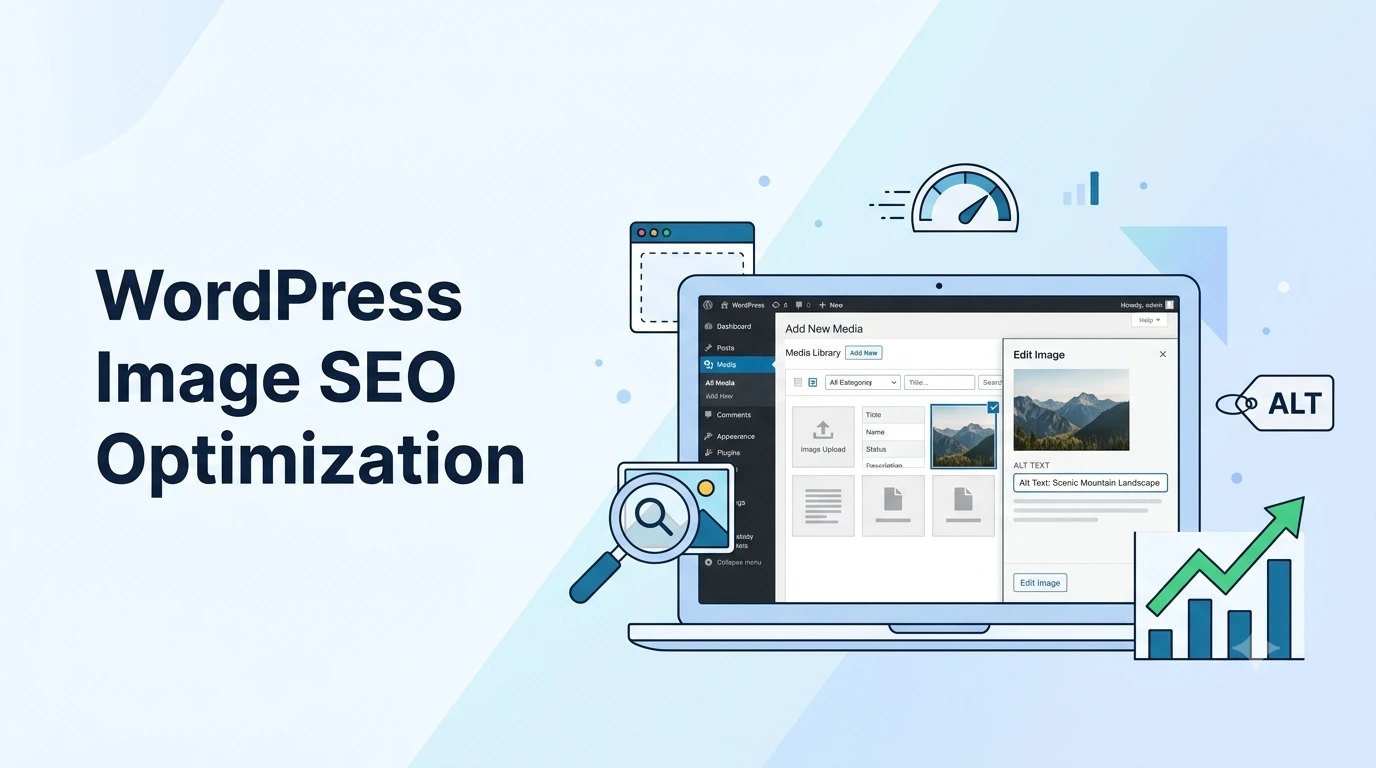
WordPress Image SEO: The Complete Guide to Optimizing Images
WordPress Image SEO
Last Updated: July 2026
Images make your website visually appealing, improve user engagement, and help explain complex ideas. However, uploading images without optimization can slow down your website, reduce your Google rankings, and negatively impact the user experience.
WordPress Image SEO is the process of optimizing images so search engines can understand, index, and rank them while ensuring your website loads quickly. Proper image optimization improves Core Web Vitals, increases organic traffic, and helps your images appear in Google Image Search.
Whether you manage a personal blog, business website, WooCommerce store, or portfolio, this guide will teach you the best practices for optimizing images in WordPress. By following these techniques, you can improve page speed, enhance accessibility, and increase your chances of ranking higher in search results.
Table of Contents
- What Is WordPress Image SEO?
- Why WordPress Image SEO Matters
- Benefits of Optimizing Images
- Choose the Right Image Format
- Resize Images Before Uploading
- Compress Images Without Losing Quality
- Use SEO-Friendly File Names
- Write Effective Alt Text
- Optimize Image Titles and Captions
- Enable Lazy Loading
- Use Responsive Images
- Create an Image Sitemap
- Improve Core Web Vitals
- Best WordPress Image SEO Plugins
- Common Image SEO Mistakes
- Frequently Asked Questions
- Conclusion
What Is WordPress Image SEO?
WordPress Image SEO refers to the process of optimizing every image on your WordPress website so that search engines can understand, crawl, and rank it efficiently. It involves much more than simply uploading an image to your media library.
Image SEO includes choosing the correct file format, compressing images without sacrificing quality, resizing images to appropriate dimensions, writing descriptive filenames, adding meaningful alt text, enabling lazy loading, and improving page performance.
When these optimization techniques are combined, your website benefits in several ways:
- Faster page loading speeds.
- Improved Core Web Vitals. href=”https://developers.google.com/search/docs/fundamentals/seo-starter-guide” target=”_blank” rel=”noopener noreferrer”>Higher Google search rankings.
- More visibility in Google Images.
- Improved accessibility for screen readers.
Modern search engines analyze not only the content of your pages but also the quality and optimization of your images. Therefore, image SEO should be considered an essential part of every WordPress SEO strategy.
Why WordPress Image SEO Matters
Many website owners spend hours optimizing articles but overlook image optimization. Large, uncompressed images are among the biggest reasons WordPress websites become slow.
Google considers page speed a ranking factor. Slow-loading websites often experience higher bounce rates, lower engagement, and fewer conversions. Optimized images reduce loading time, helping both users and search engines access your content more efficiently.
Proper image optimization also increases the likelihood of your visuals appearing in Google Image Search, which can drive additional organic traffic to your website.
Image SEO helps you:
- Improve search engine visibility.
- Increase organic traffic.
- Reduce bounce rate.
- Enhance user experience.
- Improve mobile performance.
- Increase conversion rates.
- Boost website credibility.
As websites continue to rely more heavily on visual content, optimizing every image becomes just as important as optimizing your written content.
Benefits of Optimizing Images
Implementing proper WordPress Image SEO provides both short-term and long-term advantages.
1. Faster Website Loading
Compressed and properly sized images reduce file size significantly, allowing pages to load faster on desktop and mobile devices.
2. Better Core Web Vitals
Optimized images help improve important performance metrics such as Largest Contentful Paint (LCP), contributing to better search rankings and user satisfaction.
3. Higher Google Rankings
Search engines reward websites that provide a fast, accessible, and user-friendly experience. Image optimization directly supports these goals.
4. Improved User Experience
Visitors prefer websites that load quickly and display high-quality images without delays or layout shifts.
5. Lower Storage and Bandwidth Usage
Smaller image files reduce server storage requirements and minimize bandwidth consumption, making your website more efficient and cost-effective.
6. Better Accessibility
Descriptive alternative text allows visually impaired users to understand images through screen readers while also helping search engines interpret image content.
Choose the Right Image Format
Selecting the correct image format is one of the first and most important steps in WordPress Image SEO. Each format has strengths and weaknesses depending on the type of image you are using.
| Format | Best Used For | SEO Recommendation |
|---|---|---|
| JPEG (JPG) | Photographs | Excellent balance between quality and file size. |
| PNG | Graphics & transparent images | Use only when transparency is required. |
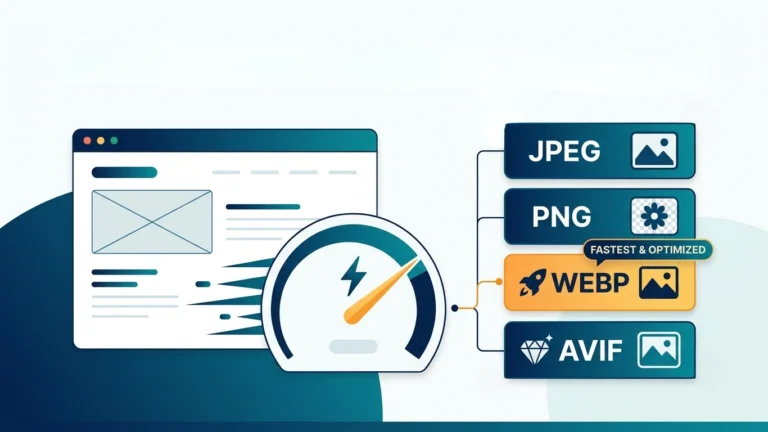
| WebP | Modern websites | Recommended for most WordPress websites due to smaller file sizes. |
| SVG | Icons and logos | Ideal for scalable graphics but should be uploaded securely. |
| AVIF | Next-generation image format | Offers excellent compression where supported. |
Whenever possible, convert large JPEG or PNG images into WebP before uploading them to WordPress. This simple step can reduce file size dramatically while maintaining excellent visual quality.
In the next section, you’ll learn how to resize images correctly before uploading them, compress them without noticeable quality loss, and continue building a complete WordPress Image SEO strategy.
Resize Images Before Uploading
One of the most common WordPress Image SEO mistakes is uploading images directly from a smartphone or DSLR camera. These images often have dimensions such as 4000 × 3000 pixels or larger, even though your website may only display them at 1200 pixels wide.
Uploading oversized images wastes bandwidth, slows page loading, and increases your server storage usage. Search engines also consider page speed when evaluating user experience, making image resizing an essential part of WordPress Image SEO.
Recommended Image Widths
| Image Type | Recommended Width |
|---|---|
| Featured Image | 1200–1600 px |
| Blog Content Image | 800–1200 px |
| WooCommerce Product Image | 1000–1500 px |
| Full Width Banner | 1920 px |
| Thumbnail | 300–600 px |
Before uploading an image, resize it to the maximum dimensions required by your theme. This reduces file size while preserving visual quality.
Tip: If your website includes an online Image Resizer, use it to prepare images before uploading them to WordPress.
Compress Images Without Losing Quality
Image compression removes unnecessary data from an image while preserving its appearance. Smaller image files load faster, improve user experience, and contribute to better Core Web Vitals.
There are two primary types of compression:
Lossless Compression
Lossless compression reduces file size without affecting image quality. It is ideal for logos, graphics, screenshots, and images containing text.
Lossy Compression
Lossy compression removes some image information to achieve much smaller file sizes. When used carefully, the quality difference is almost impossible to notice, making it ideal for photographs.
Best Practices
- Compress every image before uploading.
- Maintain a balance between quality and file size.
- Avoid repeatedly editing and re-saving JPEG images.
- Use WebP whenever possible.
- Test image quality on desktop and mobile devices.
Even reducing an image from 1.5 MB to 200 KB can significantly improve page loading speed without noticeable quality loss.
Use SEO-Friendly Image File Names
Search engines cannot understand image content by looking at pixels alone. File names provide valuable context about what an image represents.
Instead of uploading files with names such as:
IMG_45892.jpgRename them using descriptive keywords before uploading:
wordpress-image-seo-guide.jpgGood filenames should:
- Describe the image accurately.
- Include your primary keyword naturally.
- Use lowercase letters.
- Separate words using hyphens (-).
- Avoid unnecessary numbers and symbols.
Examples
| Poor Filename | SEO-Friendly Filename |
|---|---|
| DSC12345.jpg | wordpress-image-seo.jpg |
| Photo01.png | compress-images-wordpress.png |
| Image7.webp | optimize-images-wordpress.webp |
Descriptive filenames increase the likelihood that your images will appear in Google Image Search.
Write Effective Alt Text
Alternative text (Alt Text) is one of the most important components of WordPress Image SEO. It serves two purposes:
- Helps visually impaired users understand images through screen readers.
- Helps search engines interpret image content.
Good alt text should clearly describe the image while naturally incorporating relevant keywords where appropriate.
Example
| Poor Alt Text | Optimized Alt Text |
|---|---|
| image | WordPress dashboard showing image SEO settings |
| photo | Compressing images in WordPress for faster page speed |
| wordpress | WordPress Image SEO guide with image optimization checklist |
Best Practices
- Describe what appears in the image.
- Keep alt text concise and meaningful.
- Do not stuff keywords.
- Write unique alt text for every image.
- Focus on helping users first, then search engines.
Every important image on your website should have descriptive alternative text.
Optimize Image Titles and Captions
Although image titles and captions have less direct SEO impact than filenames or alt text, they improve user experience and provide additional context.
Image Title
The title helps organize images within your WordPress Media Library and may appear in some themes when users hover over an image.
Image Caption
Captions are among the most-read pieces of text on a webpage because they appear immediately below images. A well-written caption can improve engagement and reinforce the surrounding content.
Example:
Proper WordPress Image SEO improves website speed, accessibility, and Google search rankings.
Whenever a caption adds value for readers, include one. Otherwise, it is perfectly acceptable to leave it blank.
Enable Lazy Loading
Lazy loading delays the loading of images until they become visible in the user’s browser. Instead of downloading every image immediately, the browser loads only the images that are needed.
This technique significantly improves page speed, especially on pages containing many images.
Advantages of Lazy Loading
- Faster initial page load.
- Lower bandwidth consumption.
- Improved Largest Contentful Paint (LCP).
- Better mobile performance.
- Improved Core Web Vitals.
Recent versions of WordPress enable native lazy loading automatically for most images, but you should still test your pages using PageSpeed Insights to ensure everything functions correctly.
Use Responsive Images for Every Device
Modern websites are viewed on desktops, laptops, tablets, and smartphones with different screen sizes. Loading the same large image on every device wastes bandwidth and slows down page loading.
Responsive images allow WordPress to automatically deliver the most appropriate image size for each visitor’s screen. This improves loading speed while maintaining excellent image quality.
Benefits of Responsive Images
- Faster loading on mobile devices.
- Lower bandwidth usage.
- Improved user experience.
- Better Core Web Vitals scores.
- Higher search engine rankings.
Create an Image Sitemap
An Image Sitemap helps search engines discover images that may not be easily found through normal crawling. It increases the chances of your images appearing in Google Image Search.
Most modern SEO plugins automatically include images in your XML sitemap. However, you should always verify that image URLs are present after publishing new content.
Benefits of an Image Sitemap
- Faster image indexing.
- Better visibility in Google Images.
- Improved crawl efficiency.
- Additional organic traffic opportunities.
Improve Core Web Vitals with Image Optimization
Core Web Vitals measure how users experience your website. Since images are often the largest resources on a page, optimizing them has a direct impact on these performance metrics.
| Metric | Why It Matters | Image SEO Solution |
|---|---|---|
| LCP | Measures loading performance. | Compress and resize large images. |
| CLS | Measures layout stability. | Always specify image width and height. |
| INP | Measures responsiveness. | Reduce page weight and unnecessary scripts. |
Best WordPress Image SEO Plugins
Several plugins can automate image optimization, but they should complement good optimization practices rather than replace them.
Popular Image SEO Plugins
- LiteSpeed Cache – Excellent for websites hosted on LiteSpeed servers.
- Smush – Compresses and optimizes uploaded images.
- ShortPixel – Supports JPEG, PNG, WebP, and AVIF optimization.
- Imagify – Easy-to-use image optimization plugin.
- EWWW Image Optimizer – Performs optimization directly on your server.
Choose a plugin that fits your hosting environment and workflow. Avoid installing multiple image optimization plugins simultaneously, as they may conflict or duplicate processing.
Common WordPress Image SEO Mistakes
Even experienced website owners sometimes overlook basic image optimization practices. Avoiding these common mistakes can improve your site’s performance and search visibility.
❌ Uploading Images Directly from a Camera
Camera images are often several megabytes in size. Resize and compress them before uploading.
❌ Using Generic File Names
Names like IMG12345.jpg provide no useful information to search engines.
❌ Missing Alt Text
Every important image should include descriptive alt text to improve accessibility and SEO.
❌ Ignoring WebP
Modern formats such as WebP typically provide better compression than JPEG or PNG while maintaining high image quality.
❌ Uploading Oversized Images
Never upload a 4000-pixel-wide image if it will only be displayed at 1200 pixels.
❌ Skipping Image Compression
Large image files slow down your website and negatively affect Core Web Vitals.
Frequently Asked Questions
1. Does Image SEO improve Google rankings?
Yes. Optimized images contribute to faster page speed, better user experience, improved Core Web Vitals, and stronger overall SEO performance.
2. Which image format is best for WordPress?
WebP is recommended for most websites because it offers excellent quality with significantly smaller file sizes. JPEG remains a good choice for photographs, while PNG is best reserved for images requiring transparency.
3. Is Alt Text required for every image?
Alt text should be added to all meaningful images. Decorative images may use an empty alt attribute to avoid unnecessary screen reader announcements.
4. Should I compress images before uploading?
Absolutely. Compressing images before uploading helps reduce page size, improves loading speed, and enhances the visitor experience.
5. How large should WordPress images be?
For most blog posts, images between 800 and 1200 pixels wide provide a good balance between quality and performance.
Conclusion
WordPress Image SEO is far more than simply uploading attractive visuals. Every image should be resized, compressed, given a descriptive filename, optimized with meaningful alt text, and delivered in a modern format whenever possible.
By following the best practices covered in this guide, you can improve website speed, strengthen Core Web Vitals, increase accessibility, and help your images rank in Google Search and Google Images.
Remember that image optimization is an ongoing process. Make it part of your publishing workflow by preparing every image before it reaches your WordPress Media Library. Over time, these small improvements can lead to faster pages, happier visitors, and better search engine rankings.
✅ WordPress Image SEO Checklist
- ✔ Resize images before uploading.
- ✔ Compress images without noticeable quality loss.
- ✔ Use descriptive filenames.
- ✔ Add unique alt text.
- ✔ Choose WebP whenever possible.
- ✔ Enable lazy loading.
- ✔ Use responsive images.
- ✔ Submit an XML image sitemap.
- ✔ Monitor Core Web Vitals.
- ✔ Regularly audit older images for optimization opportunities.
If you consistently apply these practices, your WordPress website will be better positioned to deliver a fast, accessible, and search-friendly experience for both users and search engines.





One Comment