How to Convert SVG to PNG: 6 Easy Methods Without Losing Quality (2026 Guide)
How to Convert SVG to PNG?
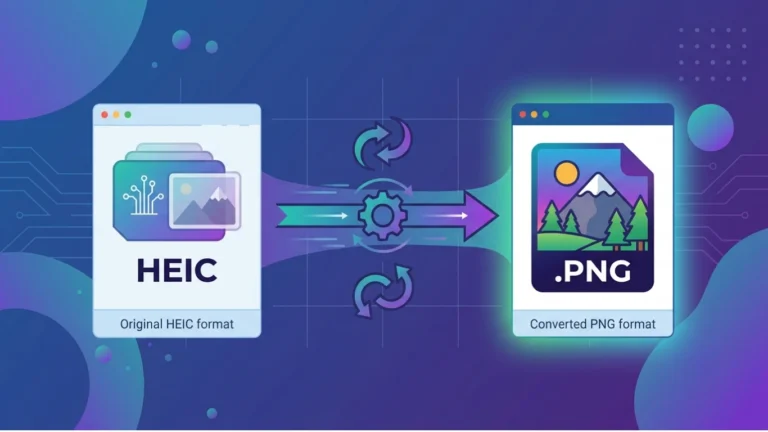
Need to convert an SVG file to PNG? You’re not alone. Whether you’re designing a website, creating social media graphics, preparing images for presentations, or uploading a logo to a platform that doesn’t support SVG, converting SVG to PNG is a common task.
Fortunately, it’s easy to do—and if you use the right method, you can convert SVG to PNG without losing quality. In this guide, you’ll learn several simple ways to convert SVG files using free online converters, desktop software, and professional design tools.
We’ll also explain the differences between SVG and PNG, when you should convert between them, and how to maintain image quality throughout the process.
Table of Contents
- Why Convert SVG to PNG?
- SVG vs PNG: What’s the Difference?
- Method 1: Convert SVG to PNG Online
- Method 2: Convert SVG to PNG Using Software
- Method 3: Adobe Illustrator
- Method 4: Inkscape
- Method 5: Photoshop
- Best Export Settings
- Frequently Asked Questions
- Final Thoughts
Why Convert SVG to PNG?
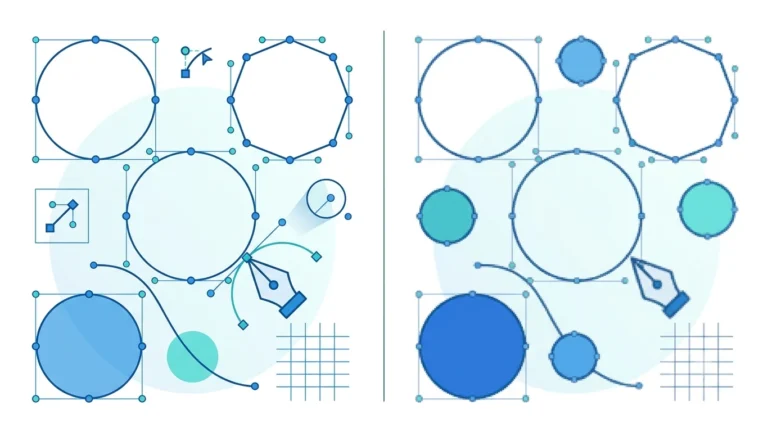
SVG (Scalable Vector Graphics) is an excellent format for logos, icons, illustrations, and other vector graphics because it can be resized without losing quality. However, not every application, website, or platform fully supports SVG files.
PNG (Portable Network Graphics) is one of the most widely supported image formats. It preserves image quality using lossless compression and supports transparent backgrounds, making it suitable for websites, presentations, documents, and social media.
You may need to convert an SVG to PNG when:
- Uploading images to websites that don’t accept SVG.
- Sharing graphics in Microsoft Word or PowerPoint.
- Creating social media posts.
- Printing a fixed-size image.
- Sending graphics to someone who doesn’t have SVG-compatible software.
- Using image editors that require raster images.
SVG vs PNG: What’s the Difference?
Before converting your file, it’s important to understand how these two formats differ.
| Feature | SVG | PNG |
|---|---|---|
| Image Type | Vector | Raster |
| Scalability | Unlimited | Fixed Resolution |
| Quality After Resizing | No Quality Loss | May Become Pixelated |
| Transparency | Supported | Supported |
| Best For | Logos, Icons, Illustrations | Web Graphics, Screenshots, Documents |
| Browser Support | Modern Browsers | Universal |
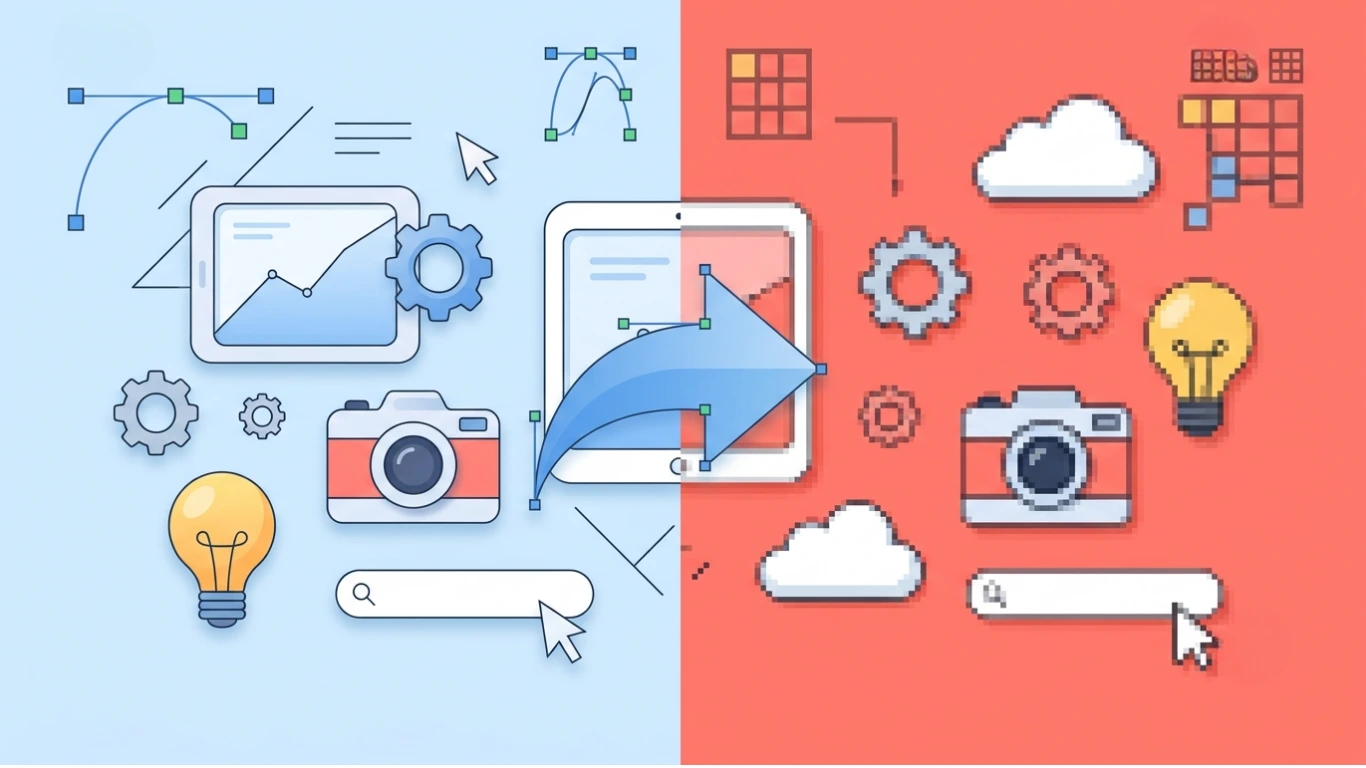
Although SVG offers infinite scalability, PNG is often required because it is supported almost everywhere. That’s why converting SVG to PNG is one of the most common image conversion tasks.
Method 1: Convert SVG to PNG Online (Fastest Method)
The easiest way to convert an SVG file is by using an online converter. Most online tools work directly in your browser, so you don’t need to install any software.
Step 1: Open an SVG to PNG Converter
Visit a trusted SVG to PNG conversion tool and upload your SVG file.
Step 2: Upload Your SVG File
Click the Upload button or drag and drop your SVG file into the converter.
Most tools support:
- .svg
- .svgz
Step 3: Choose PNG as the Output Format
Select PNG as the output format. Some converters also let you choose:
- Image width
- Image height
- Resolution (72, 150, 300 DPI)
- Transparent background
- Background color
For most web images, the default settings work well.
Step 4: Click Convert
Press the Convert button and wait a few seconds while the tool processes your file.
Conversion usually takes less than 10 seconds.
Step 5: Download the PNG File
After the conversion is complete, download your PNG image and save it to your computer.
Benefits of Converting SVG to PNG Online
- No software installation required.
- Works on Windows, macOS, Linux, Android, and iPhone.
- Fast conversion in seconds.
- Easy for beginners.
- Many free tools are available.
- Supports transparent backgrounds.
Can You Convert SVG to PNG Without Losing Quality?
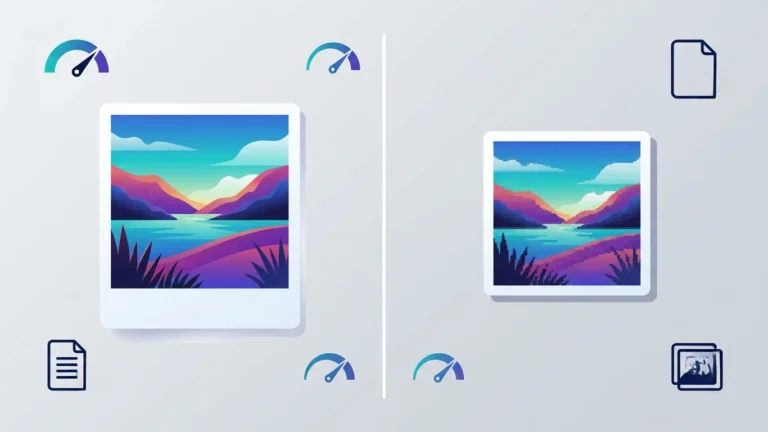
Yes. Since SVG is a vector format, you can export it as a high-resolution PNG without losing visual quality—as long as you choose appropriate export dimensions.
For example:
- Website Logo: 512 × 512 pixels
- Social Media Graphic: 1080 × 1080 pixels
- Presentation Image: 1920 × 1080 pixels
- Print Graphic: 300 DPI
Keep in mind that once the file has been converted to PNG, it becomes a raster image. Enlarging the PNG beyond its exported size may reduce image quality.
Method 2: Convert SVG to PNG Using Desktop Software
If you frequently work with graphics or need advanced export options, desktop software offers greater control over image quality, resolution, transparency, and file size than most online converters.
Professional applications also allow you to batch-convert multiple SVG files, making them ideal for designers, developers, and businesses.
Method 3: Convert SVG to PNG in Adobe Illustrator
Adobe Illustrator is one of the best tools for converting SVG files because SVG is a native vector format supported by Illustrator.
Steps to Convert SVG to PNG
- Open Adobe Illustrator.
- Click File → Open and select your SVG file.
- Review the artwork to ensure everything displays correctly.
- Select File → Export → Export As.
- Choose PNG as the output format.
- Select the destination folder.
- Choose the desired resolution (72, 150, or 300 PPI).
- Enable Transparent Background if needed.
- Click OK.
Method 4: Convert SVG to PNG Using Inkscape (Free)
Inkscape is a free, open-source vector graphics editor that provides excellent SVG support.
If you don’t have Adobe Illustrator, Inkscape is one of the best alternatives.
Steps
- Open Inkscape.
- Import your SVG file.
- Go to File → Export PNG Image.
- Select one of the export options:
- Page
- Drawing
- Selection
- Custom Size
- Choose image dimensions.
- Click Export.
Inkscape produces high-quality PNG exports while preserving transparency.
Method 5: Convert SVG to PNG Using Adobe Photoshop
Although Photoshop is primarily a raster editor, it can also open SVG files.
How to Convert
- Open Photoshop.
- Open your SVG file.
- Select the desired canvas size.
- Edit if necessary.
- Click File → Export → Export As.
- Select PNG.
- Choose transparency settings.
- Click Export.
Photoshop is especially useful if you need to add effects, shadows, or photo editing before exporting the PNG.
Method 6: Convert SVG to PNG Using ImageMagick (Command Line)
Developers often automate image conversion using ImageMagick.
Install ImageMagick and run the following command:
magick image.svg image.pngFor higher resolution:
magick -density 300 image.svg image.pngThis method is ideal for automation, scripts, and batch processing.
Method 7: Batch Convert Multiple SVG Files
If you have dozens or hundreds of SVG files, converting them one by one can be time-consuming.
Many desktop applications and online tools support batch conversion.
Batch conversion is useful for:
- Website icons
- Product catalogs
- Logo libraries
- Design systems
- Mobile app assets
Best Export Settings for SVG to PNG
| Use Case | Recommended Resolution | Background |
|---|---|---|
| Website Logo | 512 × 512 px | Transparent |
| Social Media | 1080 × 1080 px | Transparent or White |
| Presentation | 1920 × 1080 px | White |
| 300 DPI | Transparent | |
| Mobile App Icon | 1024 × 1024 px | Transparent |
How to Maintain Image Quality During Conversion
Many users worry that converting SVG to PNG will reduce image quality.
The good news is that SVG files can be exported at virtually any resolution because they are vector graphics.
To get the best results:
- Export at the final required dimensions.
- Use 300 DPI for printing.
- Keep transparency enabled if required.
- Avoid enlarging the PNG after export.
- Use lossless PNG compression.
Comparison of SVG to PNG Conversion Methods
| Method | Quality | Ease of Use | Best For |
|---|---|---|---|
| Online Converter | ⭐⭐⭐⭐ | ⭐⭐⭐⭐⭐ | Beginners |
| Adobe Illustrator | ⭐⭐⭐⭐⭐ | ⭐⭐⭐⭐ | Professionals |
| Inkscape | ⭐⭐⭐⭐⭐ | ⭐⭐⭐⭐ | Free Professional Editing |
| Photoshop | ⭐⭐⭐⭐ | ⭐⭐⭐⭐ | Graphic Designers |
| ImageMagick | ⭐⭐⭐⭐⭐ | ⭐⭐⭐ | Developers & Automation |
Common Reasons to Convert SVG to PNG
- Create website graphics.
- Upload images to CMS platforms.
- Share files with non-designers.
- Use images in Microsoft Office.
- Publish graphics on social media.
- Prepare artwork for print.
- Create thumbnails.
- Generate mobile app assets.
Can You Convert SVG to PNG for Free?
Yes. There are many free tools that allow you to convert SVG files into PNG images without paying for software.
Free solutions include:
- Online SVG to PNG converters.
- Inkscape.
- ImageMagick.
- Browser-based conversion tools.
Most users only need a free converter unless they require advanced editing features.
Best Practices for Converting SVG to PNG
Converting an SVG file to PNG is straightforward, but following a few best practices ensures your exported image looks sharp, loads quickly, and works well across websites, apps, and documents.
Whether you’re converting a company logo, an icon, or a social media graphic, these recommendations will help you achieve the best results.
- Export at the final image dimensions whenever possible.
- Use transparent backgrounds for logos and icons.
- Choose 300 DPI for print projects.
- Optimize PNG files after exporting to reduce file size.
- Keep the original SVG file for future editing.
- Use meaningful filenames instead of generic names like
image1.png. - Add descriptive alt text before uploading images to your website.
- Test the exported PNG on desktop and mobile devices.
Common Mistakes to Avoid
Many users unknowingly reduce image quality or create unnecessarily large files during conversion.
Avoid these common mistakes:
- Exporting at a resolution that is too low.
- Upscaling the PNG after conversion.
- Ignoring transparency settings.
- Using PNG for graphics that should remain editable as SVG.
- Uploading uncompressed PNG files to websites.
- Saving multiple edited versions instead of returning to the original SVG.
- Using incorrect aspect ratios that stretch the image.
Troubleshooting SVG to PNG Conversion Problems
Problem: The PNG Looks Blurry
Cause: The image was exported at a low resolution.
Solution:
- Increase the export dimensions.
- Use a higher DPI (300 for print).
- Avoid enlarging the PNG after export.
Problem: The Background Is White Instead of Transparent
Cause: Transparency was disabled during export.
Solution:
- Enable the transparent background option.
- Choose PNG instead of JPG.
Problem: Colors Look Different
Cause: Different color profiles or export settings.
Solution:
- Use the sRGB color profile for web graphics.
- Verify color settings before exporting.
Problem: The PNG File Is Too Large
Cause: The image dimensions are larger than necessary, or the PNG hasn’t been optimized.
Solution:
- Resize the image to its actual display size.
- Compress the PNG using a lossless optimizer.
- Remove unnecessary transparent space around the image.
SVG to PNG for Different Use Cases
| Use Case | Recommended Settings |
|---|---|
| Website Logo | 512 × 512 px, Transparent PNG |
| Blog Image | 1200 × 630 px |
| Facebook Post | 1200 × 630 px |
| Instagram Post | 1080 × 1080 px |
| YouTube Thumbnail | 1280 × 720 px |
| Presentation | 1920 × 1080 px |
| Business Card | 300 DPI |
| Poster | 300 DPI |
How to Optimize PNG Images After Conversion
After converting SVG to PNG, it’s a good idea to optimize the PNG before uploading it to your website.
Optimizing PNG files helps:
- Improve page speed.
- Reduce bandwidth usage.
- Enhance Core Web Vitals.
- Improve user experience.
- Support better SEO performance.
Optimization techniques include:
- Lossless compression.
- Removing unnecessary metadata.
- Cropping unused transparent areas.
- Resizing oversized images.
Is SVG to PNG Conversion Safe?
Yes, converting SVG to PNG is generally safe when using trusted software or reputable online tools.
If you’re working with confidential or proprietary graphics, consider using offline software such as Adobe Illustrator, Inkscape, or ImageMagick instead of uploading files to an online converter.
Does Converting SVG to PNG Affect SEO?
The conversion itself does not directly affect search engine rankings. However, the resulting PNG file can influence SEO through factors such as loading speed, image optimization, and accessibility.
For the best SEO results:
- Compress PNG files before uploading.
- Use descriptive filenames (for example,
convert-svg-to-png-guide.png). - Add keyword-relevant alt text.
- Specify image dimensions in HTML.
- Enable lazy loading for images below the fold.
Frequently Asked Questions
Can I convert SVG to PNG without losing quality?
Yes. Since SVG is a vector format, you can export it as a high-resolution PNG without visible quality loss, provided you choose appropriate dimensions.
What is the best free SVG to PNG converter?
Inkscape is one of the best free desktop tools. Many online converters are also suitable for quick conversions.
Why does my PNG look blurry?
This usually happens because the PNG was exported at a low resolution or enlarged after conversion.
Can I keep the transparent background?
Yes. PNG fully supports transparency. Make sure the transparency option is enabled during export.
Which resolution should I choose?
Use the final display size for websites, and choose 300 DPI for professional printing.
Can I convert multiple SVG files at once?
Yes. Many desktop applications and online converters support batch conversion, allowing you to export multiple SVG files as PNG simultaneously.
Image Alt Text Recommendations
| Image | SEO Alt Text |
|---|---|
| Online Converter | Uploading an SVG file to convert it into PNG online. |
| Adobe Illustrator Export | Export SVG to PNG using Adobe Illustrator. |
| Inkscape Export | Convert SVG to PNG in Inkscape without losing quality. |
| Photoshop Export | Export SVG as a transparent PNG in Photoshop. |
| PNG Output Example | High-quality PNG created from an SVG file. |
| Comparison Graphic | SVG to PNG conversion process step by step. |
Conclusion: How to Convert SVG to PNG
Converting an SVG file to PNG is quick and straightforward when you use the right method. Whether you choose a free online converter, Adobe Illustrator, Inkscape, Photoshop, or a command-line tool like ImageMagick, the process only takes a few minutes.
If your goal is to use an image on a website, social media platform, presentation, or application that doesn’t support SVG files, PNG is an excellent choice because it offers universal compatibility and supports transparent backgrounds.
To achieve the best results, always export your PNG at the appropriate dimensions, preserve transparency when needed, and optimize the file before uploading it to your website. Keeping the original SVG file ensures you can easily create new PNG versions in different sizes without sacrificing quality.
Quick SVG to PNG Conversion Checklist
| Task | Recommendation |
|---|---|
| Choose Output Format | PNG |
| Keep Transparency | Yes (if needed) |
| Website Graphics | Export at required display size |
| Print Graphics | 300 DPI |
| Optimize PNG | Yes |
| Keep Original SVG | Always |
| Add SEO Alt Text | Yes |
| Compress Before Upload | Recommended |
Best Use Cases for PNG After Conversion
- Website graphics
- Blog featured images
- Social media posts
- PowerPoint presentations
- Microsoft Word documents
- Email newsletters
- Online marketplaces
- eCommerce product graphics
- Mobile applications
- Printable marketing materials
When You Should Keep SVG Instead
Although PNG is highly compatible, you should continue using SVG whenever possible for scalable graphics.
Keep the image as SVG if it will be used for:
- Company logos
- Website icons
- Navigation elements
- Vector illustrations
- Flowcharts
- Infographics
- Maps
- Graphics that require future editing
Related Image Guides
Learn more about image formats and optimization with these helpful guides:
Frequently Asked Questions
How do I convert SVG to PNG for free?
You can use free online converters, Inkscape, or ImageMagick to convert SVG files into PNG without paying for premium software.
Can I convert SVG to PNG without losing quality?
Yes. Since SVG is vector-based, you can export it as a high-resolution PNG without noticeable quality loss when using the correct export settings.
Why should I convert SVG to PNG?
PNG is supported by nearly every website, application, presentation tool, and operating system, making it ideal when SVG compatibility is limited.
Does PNG support transparency?
Yes. PNG supports transparent backgrounds, making it suitable for logos, icons, and graphics placed on different colored backgrounds.
What resolution should I use?
Use the image’s final display size for websites and 300 DPI for professional printing.
Can I batch convert SVG files?
Yes. Adobe Illustrator, Inkscape, ImageMagick, and several online converters support converting multiple SVG files to PNG at once.
Can I convert PNG back to SVG?
Yes, but only simple graphics such as logos and icons convert well. Complex images and photographs generally do not produce clean SVG files.
Is SVG or PNG better for websites?
SVG is better for logos and icons because it scales without losing quality, while PNG is better for screenshots and detailed raster graphics. .
SEO Image Alt Text
| Image | Recommended Alt Text |
|---|---|
| Hero Image | How to convert SVG to PNG without losing image quality. |
| Online Converter | Convert SVG to PNG online in a few simple steps. |
| Upload Screen | Uploading an SVG file to an SVG to PNG converter. |
| Adobe Illustrator | Exporting an SVG file as PNG in Adobe Illustrator. |
| Inkscape | Converting SVG to PNG using Inkscape. |
| Photoshop | Saving an SVG file as a transparent PNG in Photoshop. |
| Comparison Table | Comparison of different SVG to PNG conversion methods. |
| Finished PNG | High-quality PNG image created from an SVG file. |
Key Takeaways
- SVG is a vector format that can be exported to PNG at any resolution.
- PNG is ideal for websites, presentations, social media, and applications.
- Always keep the original SVG file for future editing.
- Export PNG at the correct dimensions to avoid pixelation.
- Use transparent backgrounds when required.
- Compress PNG images before uploading them online.
- Add descriptive filenames and alt text to improve image SEO.
- Choose the right conversion tool based on your workflow and quality requirements.