PNG to SVG Converter: How to Convert PNG to SVG Online for Free (Complete Guide 2026)
PNG to SVG Converter
If you’re looking for a reliable PNG to SVG converter, you’ve come to the right place. Converting PNG images into SVG (Scalable Vector Graphics) allows you to create crisp, scalable graphics that remain sharp at any size. SVG files are widely used for logos, Cricut projects, laser cutting, web graphics, printing, and professional graphic design.
Unlike PNG files, which are raster images made of pixels, SVG files are vector graphics created using mathematical paths. This means SVG images can be enlarged without becoming blurry or pixelated.
In this complete guide, you’ll learn what a PNG to SVG converter is, why people convert PNG images into SVG format, the best conversion methods, and practical tips for achieving high-quality vector results.
Featured Snippet: What Is a PNG to SVG Converter?
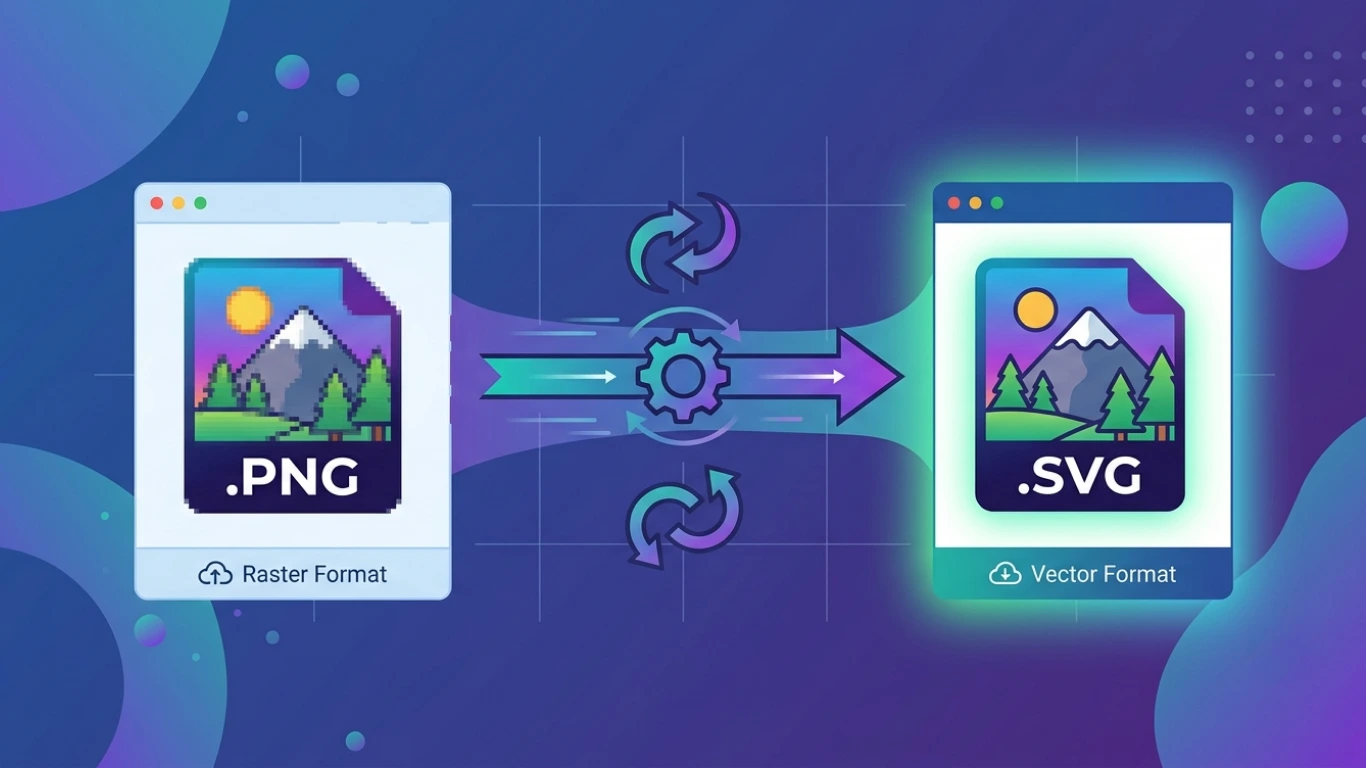
A PNG to SVG converter is a tool that converts raster PNG images into scalable SVG vector graphics. The conversion process traces the shapes, lines, and colours in the PNG image to create vector paths that can be resized without losing quality. SVG files are ideal for logos, Cricut machines, laser engraving, printing, and responsive web graphics.
Table of Contents
- What Is a PNG File?
- What Is an SVG File?
- What Is a PNG to SVG Converter?
- Why Convert PNG to SVG?
- PNG vs SVG Comparison
- How to Convert PNG to SVG
- Best PNG to SVG Converter Tools
- Frequently Asked Questions
- Conclusion
What Is a PNG File?
PNG (Portable Network Graphics) is a popular raster image format that stores images using pixels. PNG supports lossless compression and transparent backgrounds, making it one of the best formats for website graphics, screenshots, logos, and digital artwork.
PNG files are commonly used for:
- Website graphics
- Company logos
- User interface elements
- Screenshots
- Product images
- Social media graphics
- Digital illustrations
- Presentations
Although PNG provides excellent image quality, enlarging a PNG image eventually causes pixelation because it is made up of fixed pixels.
What Is an SVG File?
SVG (Scalable Vector Graphics) is a vector image format based on XML. Instead of storing pixels, SVG stores mathematical paths, allowing graphics to scale infinitely without losing sharpness.
SVG files are commonly used for:
- Company logos
- Website icons
- Responsive web graphics
- Cricut cutting projects
- Laser engraving
- Vinyl cutting
- Technical drawings
- Professional printing
Unlike PNG images, SVG graphics can be resized from a small icon to a large billboard without any loss of quality.
What Is a PNG to SVG Converter?
A PNG to SVG converter is software or an online tool that converts raster PNG images into vector SVG files using image tracing or vectorisation techniques. The converter analyses the image and recreates it using scalable vector paths.
These converters are widely used by designers, engineers, crafters, and businesses that require editable, scalable graphics.
Why Convert PNG to SVG?
Converting PNG to SVG offers several advantages, especially when working with logos, illustrations, cutting machines, or high-resolution printing.
Benefits include:
- Infinite scalability without pixelation.
- Smaller file sizes for simple graphics.
- Easy editing in vector design software.
- Perfect for Cricut and laser cutting.
- Responsive web graphics.
- Professional printing quality.
- Editable shapes and paths.
Common Uses of PNG to SVG Conversion
| Industry | Why SVG Is Preferred |
|---|---|
| Graphic Design | Scalable artwork and logos. |
| Web Development | Responsive graphics with small file sizes. |
| Cricut Projects | Cut-ready vector files. |
| Laser Cutting | Precise vector paths. |
| Printing | Sharp images at any size. |
| Branding | Editable company logos. |
| Education | Scalable diagrams and illustrations. |
| Engineering | Technical drawings and schematics. |
PNG vs SVG: Quick Comparison
| Feature | PNG | SVG |
|---|---|---|
| Image Type | Raster | Vector |
| Scalability | Limited | Infinite |
| Transparency | Yes | Yes |
| File Size | Medium to Large | Very Small (Simple Graphics) |
| Editable | Limited | Fully Editable |
| Best For | Photos and Screenshots | Logos and Vector Graphics |
| Web Performance | Good | Excellent |
Who Should Use a PNG to SVG Converter?
PNG to SVG conversion is useful for:
- Graphic designers
- Web developers
- Cricut users
- Laser engraving professionals
- Logo designers
- Print shops
- Digital marketers
- Small businesses
- Students
- Content creators
Benefits of Using SVG Instead of PNG
- Sharp graphics at every size.
- Editable vector paths.
- Smaller file sizes for logos and icons.
- Better website performance.
- Ideal for responsive web design.
- Perfect for cutting machines.
- Professional print quality.
How to Convert PNG to SVG
There are several ways to convert a PNG image into an SVG vector file. The best method depends on your image and intended use. Simple logos, icons, and illustrations usually convert very well, while complex photographs may require manual editing after conversion.
Below are the most effective methods for converting PNG images into scalable SVG files.
Method 1: Use an Online PNG to SVG Converter
An online PNG to SVG converter is the quickest solution because it works directly in your browser without installing software.
Steps
- Open a trusted PNG to SVG converter.
- Upload your PNG image.
- Select SVG as the output format.
- Adjust tracing settings if available.
- Click Convert.
- Download the SVG file.
Advantages
- No software installation.
- Works on Windows, macOS, Linux, Android, and iPhone.
- Fast conversion.
- Easy for beginners.
- Supports most PNG images.
Limitations
- Requires an internet connection.
- Some free converters limit file size.
- Complex images may need manual editing.
Method 2: Convert PNG to SVG Using Inkscape
Inkscape is one of the most popular free vector graphics editors and includes a powerful bitmap tracing feature.
Steps
- Open Inkscape.
- Import the PNG image.
- Select the image.
- Choose Path → Trace Bitmap.
- Adjust tracing settings.
- Apply the trace.
- Save the file as SVG.
Method 3: Convert PNG to SVG Using Adobe Illustrator
Adobe Illustrator offers one of the most accurate image tracing tools for professional-quality SVG files.
Steps
- Open Adobe Illustrator.
- Import the PNG image.
- Select the image.
- Click Image Trace.
- Adjust the tracing preset.
- Click Expand.
- Save the artwork as SVG.
This method is ideal for logos, branding materials, and professional vector illustrations.
Method 4: Convert PNG to SVG Using CorelDRAW
CorelDRAW includes PowerTRACE, a powerful vectorisation tool that converts bitmap images into editable vector graphics.
Steps
- Open CorelDRAW.
- Import the PNG image.
- Select the image.
- Choose Trace Bitmap.
- Adjust tracing settings.
- Apply the trace.
- Export the file as SVG.
CorelDRAW is especially useful for sign-making, printing, engraving, and logo design.
Method 5: Convert PNG to SVG Using ImageToolkitPro
If your website offers a PNG to SVG converter, visitors can upload a PNG image, automatically vectorise it, and download an SVG file directly from their browser.
Benefits include:
- Fast browser-based conversion.
- No software installation.
- Works on desktop and mobile devices.
- Simple drag-and-drop interface.
- High-quality SVG output.
Best PNG to SVG Converter Tools
| Converter | Free | Best For |
|---|---|---|
| Online PNG to SVG Converter | Yes | Quick conversions. |
| Inkscape | Yes | Free vector editing. |
| Adobe Illustrator | No | Professional vector graphics. |
| CorelDRAW | No | Printing and sign making. |
| ImageToolkitPro | Yes | Fast browser-based conversion. |
Raster vs Vector Graphics
| Feature | Raster (PNG) | Vector (SVG) |
|---|---|---|
| Built From | Pixels | Paths and curves |
| Scalability | Limited | Unlimited |
| Image Quality | Decreases when enlarged | Always sharp |
| Editing | Pixel editing | Path editing |
| Best For | Photos | Logos and illustrations |
Advantages of Using SVG
- Infinite scalability.
- Sharp graphics at every size.
- Editable vector paths.
- Smaller file sizes for simple artwork.
- Responsive website graphics.
- Ideal for Cricut and laser cutting.
- Excellent print quality.
Limitations of PNG to SVG Conversion
- Photographs rarely convert perfectly.
- Complex images may produce thousands of vector paths.
- Manual editing is often required after tracing.
- Automatic tracing may create rough edges.
- Highly detailed images generate larger SVG files.
PNG vs SVG: Detailed Comparison
| Feature | PNG | SVG |
|---|---|---|
| Image Type | Raster | Vector |
| Scalability | Limited | Unlimited |
| Transparency | Yes | Yes |
| Editable | Limited | Fully Editable |
| Website Performance | Good | Excellent |
| Best For | Photos and screenshots | Logos, icons, illustrations |
| Print Quality | Resolution dependent | Resolution independent |
When Should You Use a PNG to SVG Converter?
You should convert PNG to SVG whenever you need a scalable, editable graphic for printing, cutting, or responsive web design.
- Company logos
- Website icons
- Cricut projects
- Laser engraving
- Vinyl cutting
- Business branding
- Technical illustrations
- Professional printing
Best Practices for PNG to SVG Conversion
Using a PNG to SVG converter can produce excellent vector graphics when the original image is suitable for tracing. Clean logos, icons, line art, and simple illustrations generally convert much better than detailed photographs.
- Use a high-resolution PNG image.
- Choose images with clear edges.
- Remove noisy backgrounds before conversion.
- Use black-and-white artwork for the best tracing results.
- Simplify complex graphics before vectorising.
- Review and edit the SVG after conversion.
- Keep the original PNG as a backup.
PNG to SVG for Cricut Projects
Many Cricut users convert PNG images into SVG files because Cricut Design Space works best with vector graphics. SVG files provide cleaner cut lines and allow designs to be resized without losing quality.
Common Cricut projects include:
- T-shirts
- Vinyl decals
- Greeting cards
- Wall art
- Labels
- Paper crafts
- Custom stickers
PNG to SVG for Laser Cutting
Laser engraving and CNC machines require clean vector paths for accurate cutting. Converting PNG images into SVG files creates scalable vector paths suitable for laser cutting software.
Popular laser-cutting applications include:
- Wood engraving
- Acrylic cutting
- Metal marking
- Leather engraving
- Decorative signs
- Custom gifts
- Industrial labels
PNG to SVG for Logo Design
Businesses often convert old PNG logos into SVG format so they can be resized for business cards, websites, banners, and large-format printing without becoming blurry.
Benefits include:
- Unlimited scalability.
- Editable shapes.
- Professional print quality.
- Smaller file sizes for simple logos.
- Easy colour editing.
- Better website performance.
PNG to SVG for Printing
Professional printers prefer vector graphics because SVG files remain sharp regardless of print size. This makes SVG ideal for posters, banners, vehicle wraps, promotional products, and large-format printing.
Tips for Better Vector Conversion
| Tip | Benefit |
|---|---|
| Use High-Resolution PNG | Produces cleaner vector paths. |
| Increase Contrast | Improves edge detection. |
| Remove Background | Reduces unwanted vector shapes. |
| Simplify Artwork | Creates cleaner SVG files. |
| Edit After Tracing | Produces professional-quality results. |
Common PNG to SVG Conversion Errors
| Error | Cause | Solution |
|---|---|---|
| Jagged Edges | Low-resolution PNG. | Use a higher-resolution image. |
| Too Many Paths | Complex image. | Simplify before tracing. |
| Poor Detail | Low-quality source image. | Use a cleaner PNG. |
| Large SVG File | Too many vector nodes. | Simplify the paths. |
| Missing Details | Incorrect trace settings. | Adjust tracing options. |
| Background Included | Background not removed. | Delete the background before converting. |
PNG to SVG Conversion Best Practices
- Choose simple artwork whenever possible.
- Remove image noise before tracing.
- Use the highest-quality PNG available.
- Optimise SVG paths after conversion.
- Test the SVG before cutting or printing.
- Keep colours simple for cleaner vectors.
- Always save the original PNG file.
- Preview the SVG at different sizes.
Who Should Use a PNG to SVG Converter?
| User | Why Convert? |
|---|---|
| Graphic Designers | Create scalable artwork. |
| Web Developers | Optimise responsive graphics. |
| Cricut Users | Create cut-ready designs. |
| Laser Engravers | Generate accurate cutting paths. |
| Print Shops | Produce high-quality prints. |
| Business Owners | Modernise company logos. |
| Students | Create scalable illustrations. |
| Content Creators | Design graphics for digital platforms. |
Frequently Asked Questions (FAQs)
Can I convert PNG to SVG for free?
Yes. Many online converters and free software like Inkscape allow you to convert PNG images into SVG files at no cost.
Will every PNG convert perfectly to SVG?
No. Simple graphics such as logos and icons convert much better than detailed photographs or complex artwork.
Why does my SVG contain thousands of paths?
Highly detailed or low-quality PNG images create many vector nodes during tracing. Simplifying the artwork before conversion helps produce cleaner SVG files.
Is SVG better than PNG?
SVG is better for logos, icons, illustrations, Cricut projects, and responsive web graphics. PNG is generally better for photographs and detailed raster images.
Can I edit an SVG after conversion?
Yes. SVG files can be edited using Adobe Illustrator, Inkscape, CorelDRAW, and many other vector graphics applications.
Can Cricut use SVG files?
Yes. SVG is one of the preferred file formats for Cricut Design Space because it preserves cut paths and scales without losing quality.
Which PNG images work best for conversion?
High-resolution images with solid colours, sharp edges, and minimal background noise produce the best SVG conversion results.
PNG to SVG Conversion Checklist
| Task | Recommendation |
|---|---|
| Use High-Resolution PNG | Improves tracing accuracy. |
| Remove Background | Creates cleaner SVG files. |
| Simplify Image | Reduces unnecessary vector paths. |
| Adjust Trace Settings | Produces smoother curves. |
| Edit SVG | Remove unwanted nodes and shapes. |
| Test Scalability | Ensure quality at different sizes. |
| Keep Original PNG | Maintain a backup copy. |
| Verify Compatibility | Test with Cricut, laser cutters, or design software. |
Conclusion: Choosing the Best PNG to SVG Converter
A reliable PNG to SVG converter makes it easy to transform raster images into scalable vector graphics for websites, printing, Cricut projects, laser cutting, branding, and professional design. SVG files remain sharp at any size, making them the preferred choice for logos, icons, and illustrations.
Whether you use an online PNG to SVG converter, Inkscape, Adobe Illustrator, CorelDRAW, or your own ImageToolkitPro converter, the quality of the original PNG image plays the biggest role in producing an accurate SVG.
For the best results, use high-resolution images with clean edges, remove unnecessary backgrounds, and review the SVG after conversion to simplify paths and improve performance.
Use PNG for photos and pixel-based graphics, but convert to SVG whenever you need scalable, editable artwork for logos, Cricut projects, laser engraving, websites, or professional printing.
PNG to SVG Converter Quick Reference
| Question | Answer |
|---|---|
| Input Format | PNG (Portable Network Graphics) |
| Output Format | SVG (Scalable Vector Graphics) |
| Image Type | Raster to Vector |
| Best Free Software | Inkscape |
| Professional Software | Adobe Illustrator, CorelDRAW |
| Best For | Logos, Cricut, Laser Cutting, Printing |
| Supports Scaling | Yes (Unlimited) |
| Works Online | Yes |
When Should You Use a PNG to SVG Converter?
- Create scalable company logos.
- Prepare files for Cricut Design Space.
- Create laser engraving designs.
- Produce large-format print graphics.
- Build responsive website icons.
- Create editable vector artwork.
- Design vinyl cutting projects.
- Improve graphic scalability.
Related Articles
You may also find these image conversion guides helpful:
- SVG to DXF
- PNG to DXF
- How to Convert SVG to PNG
- SVG vs PNG
- ICO to PNG
- BMP to PNG
- CDR Meaning
- JPG vs PNG Quality
SEO Image Alt Text Suggestions
| Image | Recommended Alt Text |
|---|---|
| Featured Image | PNG to SVG converter transforming a raster PNG image into a scalable SVG vector graphic. |
| Online Converter | Uploading a PNG image to an online PNG to SVG converter. |
| Inkscape | Converting a PNG image into SVG using Inkscape Trace Bitmap. |
| Adobe Illustrator | Creating an SVG vector graphic from a PNG image using Adobe Illustrator. |
| CorelDRAW | Using CorelDRAW PowerTRACE to convert a PNG image into SVG format. |
| Cricut Example | SVG file created from a PNG image for Cricut cutting projects. |
| Laser Cutting | PNG image converted into SVG for laser engraving and CNC cutting. |
| Comparison Table | Comparison of PNG raster images and SVG vector graphics. |
| Workflow Diagram | Step-by-step PNG to SVG conversion workflow. |
Target Keywords Included
This article naturally targets the primary keyword PNG to SVG Converter while incorporating related search terms:
- png to svg converter
- convert png to svg
- png to svg online
- free png to svg converter
- image to svg converter
- bitmap to svg
- raster to vector
- vectorize png
- png to vector
- convert image to svg
- online svg converter
- svg converter
Frequently Asked Questions
Can I convert PNG to SVG for free?
Yes. Many online converters and free software like Inkscape allow you to convert PNG images into SVG files without charge.
Does every PNG convert perfectly into SVG?
No. Logos, icons, and simple graphics convert much better than detailed photographs because vector tracing works best with clean shapes.
Which is the best PNG to SVG converter?
Popular options include online converters, Inkscape, Adobe Illustrator, CorelDRAW, and ImageToolkitPro, depending on your workflow and editing needs.
Can Cricut use SVG files?
Yes. SVG is one of the recommended formats for Cricut Design Space because it preserves clean vector paths for accurate cutting.
Can I edit the SVG after conversion?
Yes. SVG files are fully editable in vector graphics software such as Adobe Illustrator, Inkscape, and CorelDRAW.