
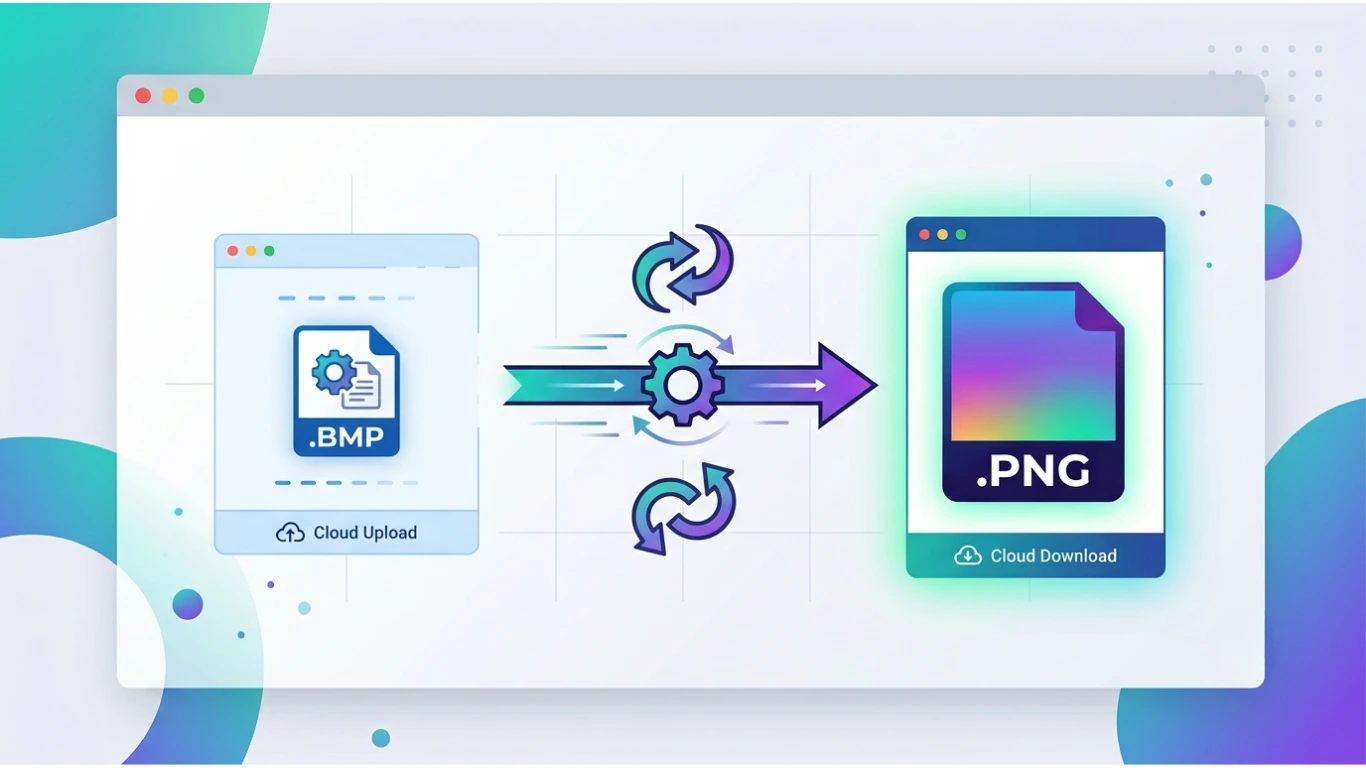
BMP to PNG: How to Convert BMP Files to PNG for Free (Complete Guide 2026)
BMP to PNG
If you need to convert a BMP file to PNG, you’re in the right place. BMP (Bitmap) files are known for storing high-quality images without compression, but they often have much larger file sizes than PNG images. Converting BMP to PNG helps reduce file size while maintaining excellent image quality and supporting transparent backgrounds.
Whether you’re optimising images for a website, sharing graphics online, editing digital artwork, or saving storage space, converting BMP to PNG is one of the best ways to make your images more efficient and widely compatible.
In this guide, you’ll learn what BMP and PNG files are, why converting between them is beneficial, the best conversion methods, and expert tips for achieving the highest image quality.
Featured Snippet: How Do You Convert BMP to PNG?
To convert BMP to PNG, upload your BMP image to an online converter or open it in software such as Microsoft Paint, Adobe Photoshop, or GIMP, then choose Save As or Export and select PNG as the output format. PNG uses lossless compression, reducing file size while preserving image quality.
Table of Contents
- What Is a BMP File?
- What Is a PNG File?
- Why Convert BMP to PNG?
- How to Convert BMP to PNG
- Best BMP to PNG Converter Tools
- BMP vs PNG Comparison
- Frequently Asked Questions
- Conclusion
What Is a BMP File?
BMP (Bitmap) is a raster image format developed by Microsoft for storing digital images. BMP files typically store image data without compression, resulting in excellent image quality but significantly larger file sizes compared to modern formats like PNG or JPEG.
BMP files are commonly used for:
- Windows graphics
- High-quality image storage
- Digital artwork
- Image editing
- Desktop publishing
- Scanned documents
- Technical illustrations
- Software development
Although BMP files provide excellent quality, their large size makes them less suitable for websites, email attachments, and online sharing.
What Is a PNG File?
PNG (Portable Network Graphics) is a popular raster image format that uses lossless compression to reduce file size without sacrificing image quality. PNG also supports transparent backgrounds, making it one of the most widely used formats for web graphics and digital design.
PNG files are commonly used for:
- Website graphics
- Company logos
- Icons
- User interface elements
- Screenshots
- Product images
- Digital illustrations
- Social media graphics
PNG files often reduce image file sizes dramatically compared to BMP while maintaining nearly identical visual quality because they use efficient lossless compression.
Why Convert BMP to PNG?
Although BMP images preserve excellent quality, they consume significantly more storage space than PNG files. Converting BMP to PNG provides better compatibility with websites, applications, and modern devices while keeping image quality virtually unchanged.
Converting BMP to PNG allows you to:
- Reduce image file size.
- Speed up website loading.
- Preserve image quality.
- Support transparent backgrounds.
- Share images more easily.
- Save storage space.
- Improve compatibility across devices.
Common Uses of BMP to PNG Conversion
| Industry | Why PNG Is Preferred |
|---|---|
| Web Development | Smaller file sizes and faster loading. |
| Graphic Design | Supports transparency and easy editing. |
| Digital Marketing | Optimised images for websites and social media. |
| Education | Easy sharing of diagrams and illustrations. |
| Software Development | User interface graphics and icons. |
| Content Creation | Images for blogs and online publishing. |
| Photography | Lossless image storage with smaller file sizes. |
| Business | Presentations and digital documentation. |
BMP vs PNG: Quick Comparison
| Feature | BMP | PNG |
|---|---|---|
| Compression | Usually None | Lossless |
| File Size | Very Large | Much Smaller |
| Transparency | No | Yes |
| Image Quality | Excellent | Excellent |
| Web Support | Limited | Excellent |
| Editing Support | Good | Excellent |
| Best For | Image storage | Web graphics and design |
Who Needs a BMP to PNG Converter?
BMP to PNG conversion is useful for:
- Web developers
- Graphic designers
- Photographers
- Digital marketers
- Students
- Content creators
- Business professionals
- Software developers
- Bloggers
- Website owners
Benefits of Converting BMP to PNG
- Reduces file size significantly.
- Maintains lossless image quality.
- Supports transparent backgrounds.
- Improves website performance.
- Compatible with all major operating systems.
- Ideal for online publishing.
- Easy to edit and share.
How to Convert BMP to PNG
There are several easy ways to convert BMP to PNG. Whether you prefer an online converter or desktop software like Microsoft Paint, Adobe Photoshop, or GIMP, the conversion process takes only a few minutes while preserving image quality.
Below are the most effective methods for converting BMP files into PNG images.
Method 1: Convert BMP to PNG Using an Online Converter
An online BMP to PNG converter is the fastest option because it works directly in your browser without requiring any software installation.
Steps
- Open a trusted BMP to PNG converter.
- Upload your BMP image.
- Select PNG as the output format.
- Click Convert.
- Download the converted PNG file.
Advantages
- No software installation.
- Works on Windows, Mac, Linux, Android, and iPhone.
- Fast conversion.
- Simple user interface.
- Supports most BMP image sizes.
Limitations
- Requires an internet connection.
- Some free tools limit file size.
- Batch conversion may require a premium version.
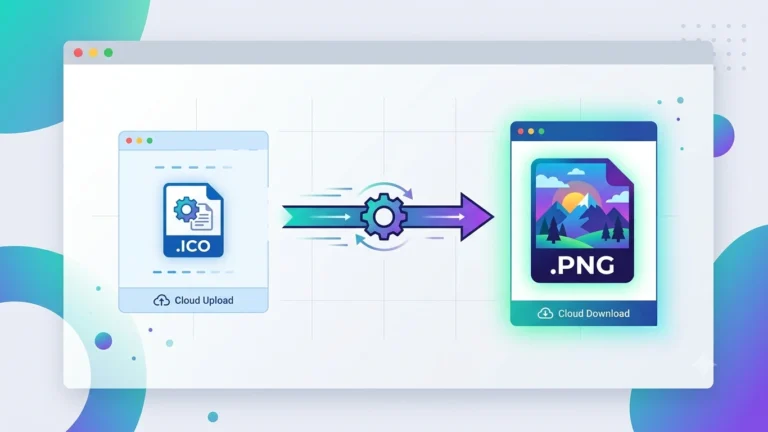
Suggested Image: Uploading a BMP file into an online BMP to PNG converter.
Method 2: Convert BMP to PNG Using Microsoft Paint
Microsoft Paint is included with Windows and provides one of the easiest ways to convert BMP files into PNG images.
Steps
- Right-click the BMP file.
- Select Open With → Paint.
- Click File → Save As.
- Select PNG Picture.
- Choose the destination folder.
- Save the file.
Method 3: Convert BMP to PNG Using Adobe Photoshop
Adobe Photoshop is an excellent choice if you need to edit your image before converting it into PNG format.
Steps
- Open Adobe Photoshop.
- Open the BMP image.
- Edit the image if necessary.
- Click File → Export → Export As.
- Select PNG.
- Choose the desired export settings.
- Export the PNG file.
This method is ideal for professional designers who require advanced editing features.
Method 4: Convert BMP to PNG Using GIMP
GIMP is a free, open-source image editor that supports BMP images and exports them as PNG files.
Steps
- Launch GIMP.
- Open the BMP image.
- Edit the image if needed.
- Click File → Export As.
- Select PNG as the output format.
- Export the image.
GIMP is an excellent free alternative to Photoshop for everyday image conversion.
Method 5: Convert BMP to PNG Using ImageToolkitPro
If your website provides a BMP to PNG converter, visitors can quickly upload a BMP image and convert it into PNG without installing any software.
Benefits include:
- Fast online conversion.
- No registration required.
- Works on desktop and mobile devices.
- Simple drag-and-drop interface.
- Produces high-quality PNG images.
Best BMP to PNG Converter Tools
| Converter | Free | Best For |
|---|---|---|
| Online Converter | Yes | Quick conversions. |
| Microsoft Paint | Yes | Basic Windows users. |
| GIMP | Yes | Free image editing. |
| Adobe Photoshop | No | Professional editing. |
| ImageToolkitPro | Yes | Fast browser-based conversion. |
Common BMP to PNG Conversion Problems
| Problem | Solution |
|---|---|
| Large PNG file | Optimise or compress the PNG after conversion. |
| Image quality issues | Use lossless PNG export settings. |
| Colour changes | Use colour-managed software like Photoshop. |
| Conversion failed | Try another converter or image editor. |
| Unsupported BMP version | Open the file with GIMP or Photoshop. |
| Slow upload | Reduce the BMP file size before uploading. |
Advantages of BMP to PNG Conversion
- Smaller file size.
- Maintains high image quality.
- Supports transparency.
- Loads faster on websites.
- Compatible with nearly all devices.
- Easy to edit and share.
- Ideal for online publishing.
Limitations of BMP to PNG Conversion
- PNG files may still be larger than JPEG for photographs.
- BMP transparency cannot be added automatically.
- Very large BMP images may take longer to convert.
- Some online converters limit upload size.
BMP vs PNG: Detailed Comparison
| Feature | BMP | PNG |
|---|---|---|
| File Type | Bitmap Image | Portable Network Graphics |
| Compression | Usually None | Lossless |
| Transparency | No | Yes |
| File Size | Large | Smaller |
| Image Quality | Excellent | Excellent |
| Web Compatibility | Limited | Excellent |
| Best Use | Image Storage | Web Graphics and Design |
When Should You Convert BMP to PNG?
You should convert BMP to PNG whenever you need a smaller, more compatible image format without sacrificing image quality.
- Website optimisation
- Graphic design
- Blog publishing
- Presentation slides
- Digital marketing
- Educational materials
- Social media graphics
- Long-term digital storage
Best Practices for BMP to PNG Conversion
Converting BMP to PNG is simple, but following a few best practices will help you achieve the best balance between image quality, file size, and compatibility. PNG uses lossless compression, so you can reduce file size without sacrificing visual quality.
- Always use the original BMP file for conversion.
- Export using PNG lossless compression.
- Resize the image before conversion if necessary.
- Optimise PNG files for web use.
- Keep a backup of the original BMP image.
- Preview the converted image before publishing.
- Compress large PNG files using optimisation tools.
BMP to PNG for Websites
PNG is one of the best image formats for websites because it provides high image quality with significantly smaller file sizes than BMP. Faster-loading images improve user experience and may contribute to better SEO performance.
Common website uses include:
- Website banners
- Company logos
- Icons
- Product images
- Screenshots
- Infographics
- Blog illustrations
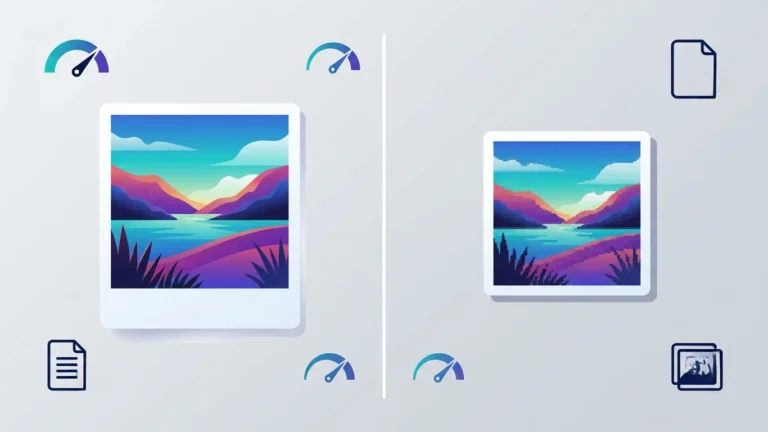
Suggested Image: Website graphics before and after converting BMP to PNG.
BMP to PNG for Graphic Design
Graphic designers often convert BMP files into PNG format because PNG supports transparency and is compatible with nearly every modern design application.
Typical design projects include:
- Digital illustrations
- Marketing materials
- Business presentations
- Product packaging
- Social media graphics
- Website elements
- User interface design
BMP to PNG for Digital Documents
PNG images are commonly used in digital documents because they maintain sharp text and graphics while keeping file sizes manageable.
Examples include:
- PDF reports
- PowerPoint presentations
- Training manuals
- Technical documentation
- Educational materials
- Business reports
Image Quality Tips
| Tip | Benefit |
|---|---|
| Use the Original BMP | Preserves maximum image quality. |
| Export as PNG | Maintains lossless quality. |
| Avoid Multiple Conversions | Reduces processing errors. |
| Keep Original Resolution | Maintains image sharpness. |
| Preview Before Saving | Ensures the output meets expectations. |
How to Reduce PNG File Size
Although PNG files are much smaller than BMP files, you can further optimise them for websites and online sharing.
| Method | Result |
|---|---|
| Resize Large Images | Smaller file size. |
| Optimise PNG | Faster website loading. |
| Remove Unused Metadata | Reduces storage space. |
| Crop Empty Areas | Smaller image dimensions. |
| Compress PNG | Further size reduction without quality loss. |
Common BMP to PNG Conversion Errors
| Error | Cause | Solution |
|---|---|---|
| Large PNG File | High-resolution image. | Optimise the PNG after conversion. |
| Slow Upload | Very large BMP file. | Resize before uploading. |
| Image Looks Blurry | Resized incorrectly. | Keep the original resolution. |
| Colour Differences | Colour profile mismatch. | Use professional editing software. |
| Conversion Failed | Corrupted BMP file. | Try another converter. |
| PNG Still Too Large | No optimisation applied. | Compress the PNG image. |
Tips for Better BMP to PNG Results
- Convert directly from the original BMP file.
- Use lossless PNG compression.
- Optimise PNG images before uploading to websites.
- Avoid unnecessary resizing.
- Remove unused metadata.
- Compress images for faster loading.
- Store the original BMP as a backup.
- Test the converted PNG on different devices.
Who Should Convert BMP to PNG?
| User | Why Convert? |
|---|---|
| Web Developers | Improve website speed. |
| Graphic Designers | Create editable graphics. |
| Photographers | Reduce file size while preserving quality. |
| Content Creators | Publish images online. |
| Digital Marketers | Optimise graphics for campaigns. |
| Students | Create presentations and reports. |
| Businesses | Manage digital assets efficiently. |
| Software Developers | Use images in applications. |
Frequently Asked Questions (FAQs)
Can I convert BMP to PNG for free?
Yes. Many online converters, Microsoft Paint, and GIMP allow you to convert BMP images to PNG at no cost.
Does converting BMP to PNG reduce image quality?
No. PNG uses lossless compression, so image quality is preserved while reducing file size.
Why is PNG smaller than BMP?
PNG uses efficient lossless compression, whereas BMP files are usually uncompressed, resulting in much larger file sizes.
Can PNG have a transparent background?
Yes. PNG supports alpha transparency, making it ideal for logos, icons, and web graphics.
Is PNG better than BMP for websites?
Yes. PNG loads faster, uses less storage, and is supported by all modern web browsers.
Can I edit a PNG after converting it?
Yes. PNG files can be edited in Photoshop, GIMP, Paint.NET, Canva, and many other image editors.
Which format is better for archiving images?
BMP is useful for storing raw bitmap data, while PNG is generally the better choice because it preserves quality while using much less storage space.
BMP to PNG Conversion Checklist
| Task | Recommendation |
|---|---|
| Use Original BMP | Ensures maximum quality. |
| Select PNG Output | Enables lossless compression. |
| Optimise PNG | Improves website speed. |
| Maintain Resolution | Prevents blurriness. |
| Preview Image | Verify quality before publishing. |
| Compress PNG | Reduce file size further. |
| Keep Backup | Retain the original BMP file. |
| Test Compatibility | Ensure the PNG works across devices and browsers. |
Conclusion: How to Convert BMP to PNG
Converting BMP to PNG is one of the best ways to reduce image file size while maintaining excellent image quality. PNG’s lossless compression makes it ideal for websites, graphic design, presentations, digital documents, and online sharing.
Whether you choose an online BMP to PNG converter, Microsoft Paint, Adobe Photoshop, GIMP, or your own online conversion tool, you’ll benefit from better compatibility, faster loading times, and smaller file sizes.
For the best results, always start with the original BMP image, preserve its original resolution whenever possible, and optimise the final PNG before uploading it to your website.
Choose BMP when you need an uncompressed bitmap image, but convert to PNG whenever you want a smaller, high-quality image that is easy to share, edit, and publish online.
BMP to PNG Quick Reference
| Question | Answer |
|---|---|
| Input Format | BMP (Bitmap Image) |
| Output Format | PNG (Portable Network Graphics) |
| Compression | Lossless |
| Transparency | Supported in PNG |
| Best Free Software | Microsoft Paint, GIMP |
| Professional Software | Adobe Photoshop |
| Best For | Web graphics, logos, screenshots, digital design |
| Works Online | Yes |
When Should You Convert BMP to PNG?
You should convert BMP to PNG whenever you need a high-quality image with a smaller file size and broad compatibility.
- Website optimisation
- Blog images
- Graphic design projects
- Business presentations
- Digital marketing
- Social media graphics
- Online portfolios
- Educational materials
- Software interfaces
- Digital documentation
Related Articles
Continue learning about image formats with these helpful guides:
SEO Image Alt Text Suggestions
| Image | Recommended Alt Text |
|---|---|
| Featured Image | BMP to PNG conversion showing a bitmap image converted into a high-quality PNG file with reduced file size. |
| Online Converter | Uploading a BMP image to an online BMP to PNG converter. |
| Microsoft Paint | Saving a BMP image as a PNG file using Microsoft Paint. |
| Adobe Photoshop | Exporting a BMP image as a PNG file using Adobe Photoshop. |
| GIMP | Converting a BMP image into PNG format using GIMP. |
| Website Example | Optimised PNG image created by converting a BMP file for faster website performance. |
| Graphic Design | BMP image converted into PNG for graphic design and digital artwork. |
| Comparison Table | Comparison of BMP and PNG image file formats. |
| Workflow Diagram | Step-by-step workflow showing how to convert BMP to PNG. |
Target Keywords Included
This article naturally targets the primary keyword BMP to PNG while including related search terms:
- bmp to png
- convert bmp to png
- bmp to png converter
- free bmp to png converter
- bmp to png online
- bitmap to png
- convert bitmap to png
- bmp file to png
- bmp image converter
- online bmp converter
- png converter
- lossless image conversion
Frequently Asked Questions
Can I convert BMP to PNG without losing quality?
Yes. PNG uses lossless compression, so it preserves the original image quality while reducing file size.
What is the best free BMP to PNG converter?
Free online converters, Microsoft Paint, and GIMP are excellent choices for converting BMP files to PNG.
Why should I convert BMP to PNG?
PNG files are smaller, load faster on websites, support transparency, and are compatible with almost all modern devices and applications.
Does PNG support transparent backgrounds?
Yes. PNG supports alpha transparency, making it ideal for logos, icons, and web graphics.
Can I edit a PNG after conversion?
Yes. PNG files can be edited in Adobe Photoshop, GIMP, Paint.NET, Canva, and many other image editing applications.
One Comment