SVG to DXF: How to Convert SVG Files to DXF for Free
SVG to DXF
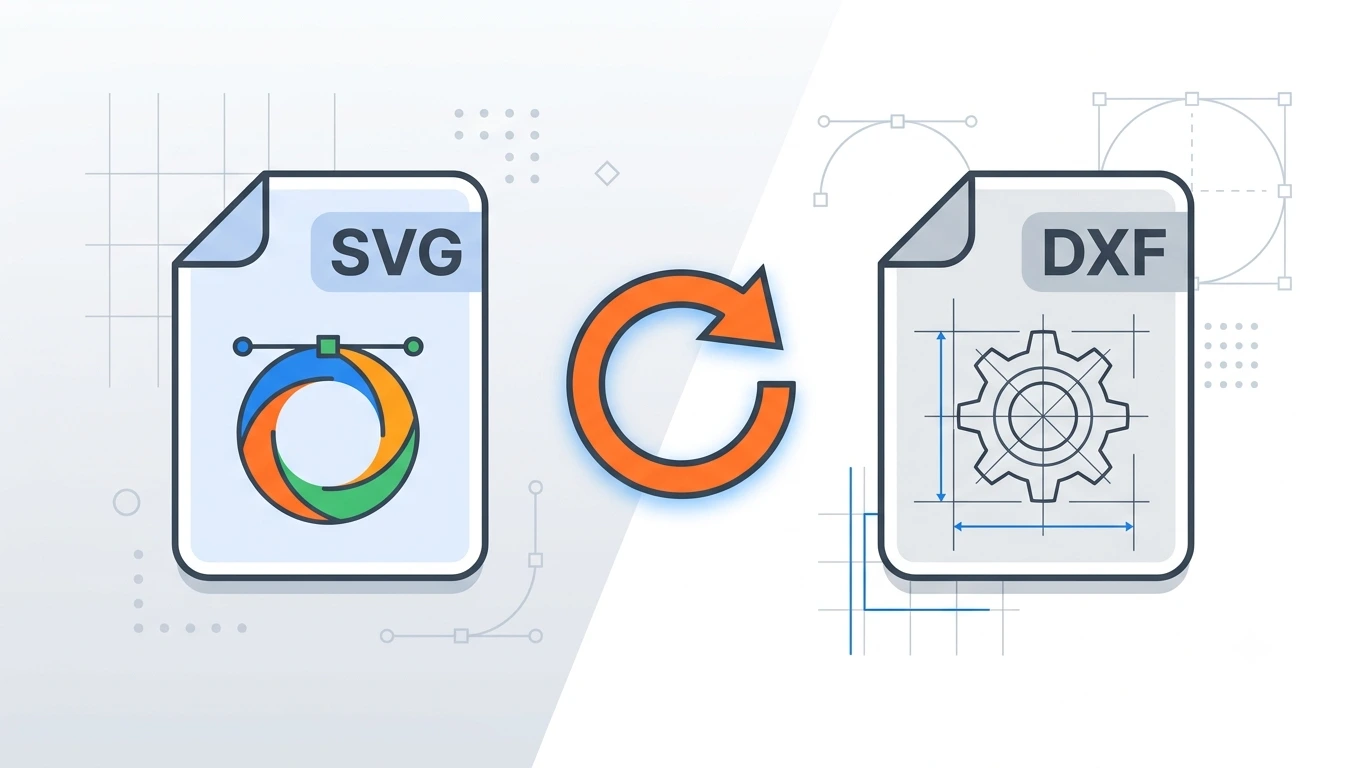
Need to convert an SVG file to DXF for CNC machining, laser cutting, AutoCAD, or other CAD software? You’re in the right place. Converting an SVG (Scalable Vector Graphics) file to DXF (Drawing Exchange Format) allows you to use vector artwork in engineering, manufacturing, and design applications that require the DXF format.
Whether you’re a hobbyist using a Cricut machine, a designer preparing files for laser cutting, or an engineer working with CAD software, this guide will show you the easiest ways to convert SVG to DXF without losing quality.
You’ll learn what SVG and DXF files are, why conversion is necessary, the best free and professional conversion tools, and tips to ensure your converted files are accurate and ready for production.
Featured Snippet: How Do You Convert SVG to DXF?
To convert SVG to DXF, open your SVG file in software such as Inkscape, CorelDRAW, or Adobe Illustrator, then export or save it as a DXF file. You can also use an online SVG to DXF converter for quick conversions. DXF files are widely used in AutoCAD, CNC machines, laser cutters, and other CAD applications.
Table of Contents
- What Is an SVG File?
- What Is a DXF File?
- Why Convert SVG to DXF?
- How to Convert SVG to DXF
- Best SVG to DXF Converter Tools
- SVG vs DXF Comparison
- Frequently Asked Questions
- Conclusion
What Is an SVG File?
SVG (Scalable Vector Graphics) is a vector image format based on XML. Unlike raster image formats such as JPG or PNG, SVG files store graphics using mathematical paths instead of pixels, allowing them to be resized without losing quality.
SVG files are commonly used for:
- Website logos
- Icons
- Illustrations
- Infographics
- Diagrams
- Cricut cutting designs
- Laser cutting templates
- Vector artwork
Because SVG is lightweight and scalable, it has become one of the most popular image formats for modern web design and digital graphics.
What Is a DXF File?
DXF (Drawing Exchange Format) is a vector file format developed by Autodesk for exchanging CAD drawings between different design and engineering applications.
DXF files are widely supported by software such as AutoCAD and are commonly used in manufacturing and industrial workflows.
Typical uses include:
- CNC machining
- Laser cutting
- Waterjet cutting
- Plasma cutting
- CAD drafting
- Architectural drawings
- Mechanical engineering
- 3D modeling workflows
DXF was introduced by Autodesk to make it easier for different CAD programs to exchange technical drawings while preserving vector geometry.
Why Convert SVG to DXF?
Although SVG is excellent for web graphics and scalable illustrations, many CAD applications and manufacturing machines require the DXF format.
Converting SVG to DXF allows you to:
- Import vector artwork into AutoCAD.
- Prepare designs for CNC routers.
- Create files for laser cutting.
- Use graphics with plasma cutting machines.
- Share CAD-compatible vector drawings.
- Maintain vector quality during conversion.
- Improve compatibility with engineering software.
Common Uses of SVG to DXF Conversion
| Industry | Why DXF Is Needed |
|---|---|
| CNC Machining | Machine-readable vector toolpaths. |
| Laser Cutting | Precision cutting patterns. |
| Engineering | CAD-compatible drawings. |
| Architecture | Technical floor plans and layouts. |
| Manufacturing | Production-ready vector files. |
| Metal Fabrication | Accurate cutting designs. |
| Woodworking | CNC carving and routing. |
| Sign Making | Large-format cutting machines. |
SVG vs DXF: Quick Comparison
| Feature | SVG | DXF |
|---|---|---|
| Primary Use | Web graphics | CAD drawings |
| Vector Format | Yes | Yes |
| Supports Animation | Yes | No |
| Browser Support | Excellent | Limited |
| AutoCAD Compatible | No | Yes |
| CNC Compatible | Limited | Excellent |
| Laser Cutting | Sometimes | Excellent |
Who Needs an SVG to DXF Converter?
SVG to DXF conversion is especially useful for:
- Graphic designers
- CAD professionals
- Mechanical engineers
- Architects
- CNC machine operators
- Laser cutting businesses
- Cricut users
- Silhouette Studio users
- Manufacturing companies
- Woodworking professionals
Benefits of Converting SVG to DXF
- Maintains vector quality.
- Works with AutoCAD and CAD software.
- Supports CNC machining.
- Compatible with laser cutting machines.
- Ideal for manufacturing workflows.
- Easy to edit in CAD applications.
- Preserves precise vector paths.
How to Convert SVG to DXF
There are several ways to convert an SVG file to DXF. The best method depends on whether you need a quick online conversion, professional editing capabilities, or CAD-ready files for CNC machining and laser cutting.
Below are the most reliable methods used by designers, engineers, and manufacturers.
Method 1: Convert SVG to DXF Using an Online Converter
If you only need to convert one or two files, an online SVG to DXF converter is the quickest solution.
Steps
- Open an SVG to DXF converter website.
- Upload your SVG file.
- Select DXF as the output format.
- Start the conversion.
- Download the converted DXF file.
Advantages
- No software installation.
- Fast conversion.
- Works on Windows, macOS, and Linux.
- Suitable for occasional users.
Limitations
- Internet connection required.
- Large files may have upload limits.
- Advanced editing options are limited.
Method 2: Convert SVG to DXF Using Inkscape
Inkscape is one of the most popular free vector graphics editors and supports exporting SVG files to DXF.
Steps
- Open Inkscape.
- Select File → Open.
- Choose your SVG file.
- Check the artwork for any issues.
- Select File → Save As.
- Choose Desktop Cutting Plotter (AutoCAD DXF R14).
- Adjust export settings if needed.
- Click Save.
Method 3: Convert SVG to DXF Using CorelDRAW
CorelDRAW provides advanced vector editing tools and allows you to export artwork into DXF format.
Steps
- Open your SVG file in CorelDRAW.
- Review colors, curves, and layers.
- Select File → Export.
- Choose DXF as the export format.
- Select the desired AutoCAD version.
- Export the file.
This method is ideal for professional designers who need accurate vector geometry before manufacturing.
Method 4: Convert SVG to DXF Using Adobe Illustrator
Adobe Illustrator can export vector artwork into DXF format for use in AutoCAD and other CAD applications.
Steps
- Open the SVG file.
- Clean unnecessary paths.
- Convert text to outlines.
- Select File → Export → Export As.
- Select DXF.
- Choose export settings.
- Save the file.
Method 5: Import SVG into AutoCAD
Recent versions of AutoCAD support importing SVG files directly. After importing, you can save the drawing as a DXF file.
Steps
- Open AutoCAD.
- Import the SVG file.
- Adjust scale if necessary.
- Clean overlapping objects.
- Save the drawing as DXF.
This method provides excellent compatibility with engineering and manufacturing projects.
Best SVG to DXF Converter Tools
| Tool | Free | Best For |
|---|---|---|
| Inkscape | Yes | Free professional conversion. |
| CorelDRAW | No | Professional graphic design. |
| Adobe Illustrator | No | Advanced vector editing. |
| AutoCAD | No | Engineering workflows. |
| Online SVG to DXF Converters | Usually | Quick one-time conversions. |
SVG to DXF Conversion Settings
Using the correct export settings helps preserve the quality of your design.
| Setting | Recommendation |
|---|---|
| Text | Convert to paths/outlines. |
| Stroke Width | Convert to outlines if required. |
| Units | Millimeters or inches based on project. |
| Layers | Keep organized. |
| Curves | Simplify unnecessary nodes. |
| Scale | Verify before exporting. |
Common SVG to DXF Conversion Problems
| Problem | Solution |
|---|---|
| Missing fonts | Convert text to outlines. |
| Broken curves | Simplify paths before export. |
| Incorrect scale | Check document units. |
| Missing layers | Verify export options. |
| Extra nodes | Optimize vector paths. |
| Import errors | Use AutoCAD-compatible DXF version. |
Advantages of Converting SVG to DXF
- Maintains vector precision.
- Compatible with CAD software.
- Supports CNC machining.
- Ideal for laser cutting.
- Easy to edit in engineering software.
- Suitable for manufacturing workflows.
- Preserves scalable vector graphics.
Limitations of DXF Files
- Does not support web animations.
- File size can become large.
- Some SVG effects may not transfer.
- Browser support is limited.
- Complex gradients may be simplified.
When Should You Convert SVG to DXF?
You should convert SVG to DXF when your project requires compatibility with CAD software or manufacturing equipment.
Common situations include:
- Preparing files for CNC routers.
- Laser cutting projects.
- Waterjet cutting.
- Plasma cutting.
- Architectural drawings.
- Mechanical engineering.
- Industrial manufacturing.
- Sharing CAD drawings.
SVG vs DXF: Detailed Comparison
| Feature | SVG | DXF |
|---|---|---|
| Primary Purpose | Web graphics | CAD drawings |
| Scalable | Yes | Yes |
| Editable | Excellent | Excellent |
| Animation Support | Yes | No |
| AutoCAD Support | Limited | Excellent |
| CNC Ready | Sometimes | Yes |
| Laser Cutting | Sometimes | Excellent |
| Manufacturing | Limited | Excellent |
Best Practices for SVG to DXF Conversion
Converting an SVG file to DXF is usually straightforward, but following a few best practices can help you avoid compatibility issues and ensure your design works correctly in CAD software, CNC machines, and laser cutters.
- Convert all text to outlines before exporting.
- Remove unnecessary nodes and duplicate paths.
- Use simple vector shapes whenever possible.
- Verify the document units (mm or inches).
- Check the scale before importing into CAD software.
- Remove hidden layers and unused objects.
- Keep a copy of the original SVG file.
- Test the DXF file before production.
SVG to DXF for CNC Machines
Many CNC routers require DXF files because they contain vector paths that can be converted into machining toolpaths.
When preparing an SVG for CNC machining:
- Use closed vector paths.
- Remove overlapping objects.
- Convert strokes into outlines if required.
- Use consistent units.
- Simplify complex curves.
- Avoid unsupported SVG effects.
Properly prepared DXF files help CNC machines produce accurate cuts with minimal errors.
SVG to DXF for Laser Cutting
Laser cutters use vector paths to determine cutting lines. DXF is one of the most widely accepted formats for laser cutting software.
For the best results:
- Use hairline strokes if required by your machine.
- Delete duplicate lines.
- Ensure all paths are closed.
- Convert text into curves.
- Verify dimensions before cutting.
SVG to DXF for Cricut and Silhouette
Although Cricut Design Space and Silhouette Studio primarily support SVG files, some advanced workflows or third-party software require DXF files.
DXF files can be useful for:
- Sharing designs with users who don’t have SVG support.
- Using older versions of cutting software.
- Importing vector artwork into CAD programs before cutting.
SVG to DXF for AutoCAD
AutoCAD users often convert SVG files into DXF so that vector artwork can be edited, measured, and integrated into technical drawings.
After importing a DXF file into AutoCAD, you can:
- Edit vector geometry.
- Add dimensions.
- Create layouts.
- Generate manufacturing drawings.
- Export additional CAD formats.
Common SVG to DXF Conversion Errors
| Error | Cause | Solution |
|---|---|---|
| Missing Text | Fonts not embedded | Convert text to outlines. |
| Wrong Scale | Incorrect units | Verify document units before export. |
| Broken Curves | Complex vector paths | Simplify paths before exporting. |
| Extra Lines | Duplicate objects | Delete duplicate paths. |
| Import Failure | Unsupported DXF version | Export using AutoCAD R14 or compatible version. |
| Jagged Shapes | Poor vector tracing | Clean the SVG before conversion. |
Tips to Maintain Quality During SVG to DXF Conversion
- Start with a clean SVG file.
- Use vector graphics instead of raster images.
- Convert all fonts into outlines.
- Avoid clipping masks.
- Flatten unnecessary layers.
- Use consistent measurement units.
- Optimize paths before exporting.
- Preview the DXF before manufacturing.
Who Should Use SVG to DXF Conversion?
| User | Why Convert SVG to DXF? |
|---|---|
| Graphic Designers | Create CAD-compatible artwork. |
| CNC Operators | Prepare machine toolpaths. |
| Laser Cutting Businesses | Create precision cutting files. |
| Architects | Use vector graphics in CAD drawings. |
| Mechanical Engineers | Edit technical drawings. |
| Manufacturers | Prepare production-ready files. |
| Woodworkers | Create CNC carving designs. |
| Metal Fabricators | Prepare cutting layouts. |
Frequently Asked Questions (FAQs)
Can I convert SVG to DXF for free?
Yes. You can use free software like Inkscape or several online SVG to DXF converters to convert files without paying for professional software.
Will I lose quality when converting SVG to DXF?
No. Since both SVG and DXF are vector formats, the quality remains sharp as long as the conversion is performed correctly and unsupported effects are avoided.
What software opens DXF files?
DXF files can be opened using AutoCAD, DraftSight, LibreCAD, CorelDRAW, SolidWorks, and many other CAD applications.
Can AutoCAD import SVG files?
Some newer versions of AutoCAD support SVG import. Alternatively, converting SVG to DXF provides broader compatibility across CAD workflows.
Why is my DXF file the wrong size?
This usually happens because the export units were incorrect. Always verify whether your project uses millimeters, inches, or another measurement unit before exporting.
Can DXF files be used for laser cutting?
Yes. DXF is one of the most common file formats used for laser cutting because it accurately represents vector paths.
Can I convert DXF back to SVG?
Yes. Many vector editing programs, including Inkscape and CorelDRAW, can import DXF files and export them as SVG.
Is DXF better than SVG?
Neither format is universally better. SVG is ideal for websites and scalable graphics, while DXF is preferred for CAD software, CNC machining, and manufacturing.
Quick SVG to DXF Checklist
| Task | Recommendation |
|---|---|
| Convert Text | Convert to outlines. |
| Units | Millimeters or inches. |
| Paths | Remove duplicates. |
| Layers | Delete unused layers. |
| Scale | Verify before exporting. |
| DXF Version | Use AutoCAD R14 if possible. |
| Quality Check | Preview before production. |
| Backup | Keep the original SVG file. |
Conclusion: How to Convert SVG to DXF
Converting an SVG file to DXF is the best way to prepare vector artwork for CAD software, CNC machines, laser cutters, plasma cutters, and other manufacturing equipment. Since both SVG and DXF are vector formats, you can preserve sharp lines and accurate geometry throughout the conversion process.
Whether you choose an online SVG to DXF converter, Inkscape, CorelDRAW, Adobe Illustrator, or AutoCAD, the key is to clean your vector artwork before exporting. Converting text to outlines, removing duplicate paths, and checking the document scale will help ensure your DXF file is production-ready.
If you’re creating files for professional manufacturing, always preview the converted DXF in your CAD software before sending it to a CNC machine or laser cutter. Taking a few extra minutes to verify the design can save material, time, and production costs.
Use SVG for web graphics and scalable illustrations, then convert to DXF whenever you need compatibility with AutoCAD, CNC routers, laser cutting machines, or other CAD-based manufacturing workflows.
SVG to DXF Quick Reference
| Question | Answer |
|---|---|
| Input Format | SVG (Scalable Vector Graphics) |
| Output Format | DXF (Drawing Exchange Format) |
| Best Free Tool | Inkscape |
| Professional Software | CorelDRAW, Adobe Illustrator, AutoCAD |
| Best For | CNC machining, CAD, laser cutting |
| Vector Format | Yes |
| Supports Scaling | Yes |
| Production Ready | Yes, after verification |
When Should You Use DXF Instead of SVG?
Choose the DXF format when your project involves engineering, manufacturing, or machine-controlled cutting.
- CNC machining
- Laser cutting
- Waterjet cutting
- Plasma cutting
- Architectural drafting
- Mechanical engineering
- CAD software
- Industrial manufacturing
For websites, logos, icons, and responsive graphics, SVG remains the better choice because it is optimized for browsers and supports scalable web graphics.
Related Articles
Learn more about vector graphics, image formats, and file conversions with these helpful guides:
- SVG vs PNG
- How to Convert SVG to PNG
- CDR Meaning
- JPG vs PNG Quality
- WebP vs JPEG
- WordPress Image SEO
- eCommerce Image Optimization
SEO Image Alt Text Suggestions
| Image | Recommended Alt Text |
|---|---|
| Featured Image | SVG to DXF conversion process for AutoCAD, CNC machining, and laser cutting. |
| Online Converter | Uploading an SVG file to an online SVG to DXF converter. |
| Inkscape Export | Exporting an SVG file as DXF using Inkscape. |
| CorelDRAW Export | Converting an SVG file to DXF in CorelDRAW. |
| Adobe Illustrator Export | Exporting SVG artwork to DXF using Adobe Illustrator. |
| AutoCAD Import | Opening a DXF file converted from SVG in AutoCAD. |
| CNC Machine | DXF file created from SVG for CNC machining. |
| Laser Cutter | DXF file prepared from an SVG for precision laser cutting. |
| SVG vs DXF Table | Comparison between SVG and DXF vector file formats. |
| Conversion Workflow | Step-by-step workflow for converting SVG to DXF. |
Target Keywords Included
This article naturally targets the primary keyword SVG to DXF while covering related long-tail keywords, including:
- svg to dxf
- convert svg to dxf
- svg to dxf converter
- free svg to dxf converter
- svg to dxf online
- svg file to dxf
- svg to dxf for cnc
- svg to dxf for laser cutting
- svg to dxf autocad
- svg to cad
- dxf converter
- convert svg file to dxf
Frequently Asked Questions
Can I convert SVG to DXF without losing quality?
Yes. Since both SVG and DXF are vector formats, you can maintain excellent quality if your SVG artwork is properly prepared before conversion.
What is the best free SVG to DXF converter?
Inkscape is one of the best free tools for converting SVG files to DXF because it supports vector editing and exports to AutoCAD-compatible DXF formats.
Can AutoCAD open SVG files?
Some newer versions of AutoCAD support SVG import, but converting SVG to DXF provides better compatibility with a wide range of CAD applications.
Is DXF required for CNC machines?
Many CNC machines support DXF because it stores vector paths that can be converted into machining toolpaths. However, supported file formats vary depending on the machine and software.
Can I convert DXF back to SVG?
Yes. Programs like Inkscape, CorelDRAW, and Adobe Illustrator can import DXF files and export them as SVG.