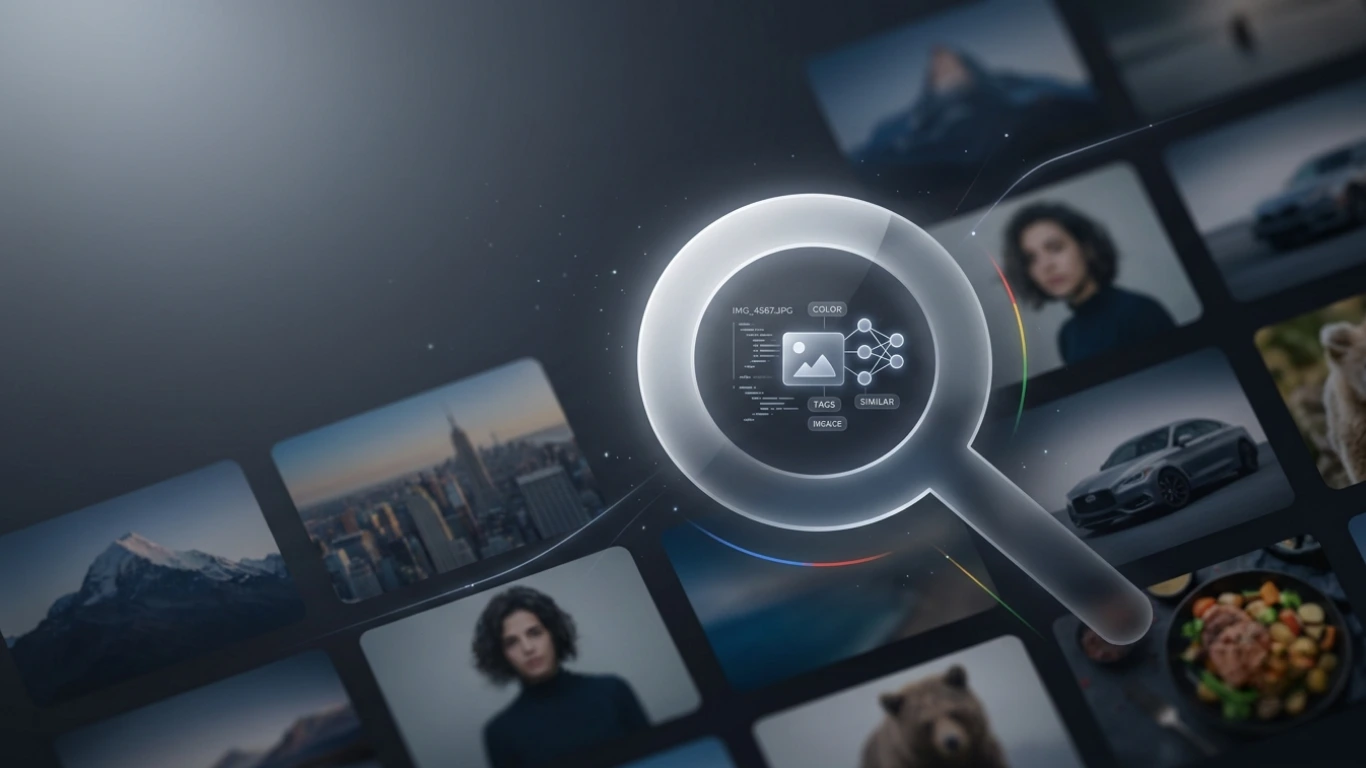
Google Images: How to Search, Download, Reverse Search & Use Images Legally (2026)
Google Images
Google Images is the world’s most popular image search engine, helping millions of people find photos, illustrations, logos, icons, screenshots, wallpapers, and graphics every day. Whether you’re looking for inspiration, researching a topic, or searching for copyright-friendly images, Google Images makes finding visual content fast and easy.
In this complete guide, you’ll learn what Google Images is, how it works, how to search effectively, perform reverse image searches, download images responsibly, and understand image licensing and copyright. We’ll also share tips for students, bloggers, designers, marketers, and business owners.
Featured Snippet: What Is Google Images?
Google Images is an image search service developed by Google that allows users to search billions of images from websites across the internet. Users can search using keywords, upload an image for reverse image search, or use Google Lens to identify objects, products, landmarks, plants, animals, and more.
Table of Contents
- What Is Google Images?
- History of Google Images
- How Google Images Works
- Why Use Google Images?
- Key Features of Google Images
- Types of Google Image Searches
- Google Images vs Other Image Search Engines
- Frequently Asked Questions
- Conclusion
What Is Google Images?
Google Images is a specialised image search engine that indexes billions of images from websites around the world. Instead of displaying only web pages, it presents image results related to your search query.
You can search for almost anything, including:
- Photographs
- Logos
- Icons
- Illustrations
- Wallpapers
- Infographics
- Product images
- Maps and diagrams
Google Images also supports reverse image search, allowing users to upload an image or paste an image URL to discover its source, similar images, or visually related content.
History of Google Images
Google Images was launched in 2001 after a significant increase in demand for image search. Over the years, Google has continually improved the service by introducing advanced filters, image licensing information, and artificial intelligence technologies such as Google Lens.
Today, Google Images is used by students, teachers, journalists, marketers, designers, developers, photographers, and businesses around the world.
Google Images indexes billions of images from websites worldwide, making it one of the largest visual search engines available.
How Google Images Works
Google Images automatically crawls websites, discovers images, and stores information such as filenames, alt text, page titles, surrounding content, and image metadata. When you perform a search, Google’s algorithms rank and display the most relevant images.
Google considers many ranking factors, including:
- Image relevance
- Page content
- Image alt text
- Image filename
- Website authority
- Page loading speed
- User experience
- Image quality
Why Use Google Images?
Google Images helps users quickly find visual information for education, work, entertainment, shopping, and creative projects.
- Find high-quality images quickly.
- Research products visually.
- Identify landmarks, plants, and animals.
- Discover image sources.
- Perform reverse image searches.
- Find copyright-friendly images.
- Explore design inspiration.
- Compare products visually.
Key Features of Google Images
- Keyword image search.
- Reverse image search.
- Google Lens integration.
- Advanced search filters.
- Image size filters.
- Colour filters.
- Usage rights filtering.
- SafeSearch protection.
- Related image suggestions.
- Mobile-friendly interface.
Types of Google Image Searches
| Search Type | Description |
|---|---|
| Keyword Search | Search images using words or phrases. |
| Reverse Image Search | Upload an image to find similar or original versions. |
| Google Lens Search | Search using your camera or an existing image. |
| Voice Search | Search images using voice commands on supported devices. |
| Product Search | Find products using images. |
Google Images vs Other Image Search Engines
| Feature | Google Images | Bing Images | DuckDuckGo Images |
|---|---|---|---|
| Image Database | Very Large | Large | Moderate |
| Reverse Image Search | Yes | Yes | Limited |
| Google Lens | Yes | No | No |
| Image Filters | Excellent | Very Good | Basic |
| Usage Rights Filter | Yes | Yes | Limited |
| Mobile Experience | Excellent | Very Good | Good |
Who Uses Google Images?
Google Images is useful for a wide range of users and industries.
- Students
- Teachers
- Researchers
- Graphic designers
- Bloggers
- SEO professionals
- Digital marketers
- Photographers
- Journalists
- Business owners
Advantages of Google Images
- Free to use.
- Fast and accurate image search.
- Billions of indexed images.
- Powerful reverse image search.
- Advanced search filters.
- Available on desktop and mobile.
- Integrated with Google Lens.
- Supports image licensing filters.
How to Search Google Images Effectively
Searching with Google Images is simple, but using the right techniques can help you find more accurate and relevant results. Instead of using a single word, try descriptive phrases that include colours, sizes, locations, or specific objects.
Basic Steps
- Visit Google Images.
- Enter your search keyword.
- Press Enter.
- Browse the image results.
- Click an image to view more details and visit the original website.
Example searches:
- Blue mountain landscape wallpaper
- PNG transparent shopping cart icon
- Modern office interior design
- Cute golden retriever puppy
- World map printable
Advanced Google Images Filters
Google Images provides several filters that help narrow your search results.
| Filter | Purpose |
|---|---|
| Size | Find small, medium, large, or high-resolution images. |
| Colour | Search for images with specific colours or transparent backgrounds. |
| Type | Filter by photo, clip art, drawing, GIF, or line art. |
| Time | Show recently indexed images. |
| Usage Rights | Locate images with reusable licences. |
| SafeSearch | Filter explicit content. |
Using multiple filters together often produces much more accurate image search results.
What Is Reverse Image Search?
Reverse image search allows you to upload an image instead of typing text. Google analyses the image and searches for visually similar images, the original source, related web pages, and products.
Reverse image search is useful for:
- Finding the original image source.
- Checking image authenticity.
- Detecting copied images.
- Finding higher-resolution versions.
- Identifying landmarks, animals, or products.
How to Search by Image
On Desktop
- Open Google Images.
- Click the Google Lens icon in the search box.
- Upload an image or drag and drop it.
- View matching images and related information.
On Mobile
- Open the Google app or Chrome.
- Tap the Google Lens icon.
- Capture a new photo or select one from your gallery.
- Google identifies similar images and relevant web pages.
How to Download Images Responsibly
Downloading an image from Google Images is easy, but remember that many images are protected by copyright.
- Open the image.
- Visit the original website.
- Download the image if permitted.
- Read the licensing terms before using it.
Important: Google Images is a search engine—it does not own most of the images displayed in search results.
How to Find Copyright-Friendly Images
If you’re creating a website, blog, YouTube video, or presentation, you should use images with appropriate licences.
Google Images includes a Usage Rights filter that can help you locate images that may be available for reuse.
Other trusted sources include:
Google Lens Integration
Google Lens uses artificial intelligence to recognise objects, text, plants, animals, products, and landmarks directly from images.
You can use Google Lens to:
- Translate text.
- Identify plants and animals.
- Shop using product images.
- Copy printed text.
- Identify buildings and landmarks.
- Solve homework problems.
Google Images on Mobile
Google Images works seamlessly on Android and iPhone devices. Mobile users can search using text, voice, or Google Lens.
Popular mobile features include:
- Voice search.
- Camera search.
- Image sharing.
- Save images to collections.
- Shopping recommendations.
Benefits of Google Images
- Quick access to billions of images.
- Powerful reverse image search.
- Easy product discovery.
- Advanced search filters.
- Supports visual learning.
- Useful for education and research.
- Integrated AI through Google Lens.
- Free to use.
Limitations of Google Images
- Many images are protected by copyright.
- Search results may include outdated images.
- Image quality varies between websites.
- Not every image is free for commercial use.
- Some results may be duplicated across multiple websites.
Best Practices for Using Google Images
- Use descriptive search terms.
- Apply filters to narrow results.
- Verify image licences before downloading.
- Credit the creator when required.
- Use reverse image search to verify authenticity.
- Download images from trusted websites.
- Optimise images before uploading to your own website.
- Respect copyright and intellectual property rights.
Google Images vs Google Lens
| Feature | Google Images | Google Lens |
|---|---|---|
| Keyword Search | ✔ | ✘ |
| Reverse Image Search | ✔ | ✔ |
| Camera Search | ✘ | ✔ |
| Object Recognition | Limited | Excellent |
| Product Identification | Good | Excellent |
| Text Translation | ✘ | ✔ |
Google Images for SEO
Google Images is an important source of organic traffic for websites. Well-optimised images can appear in Google Image Search, helping businesses, bloggers, and content creators attract additional visitors.
To improve your chances of ranking in Google Images:
- Use descriptive image filenames.
- Write accurate and keyword-rich alt text.
- Compress images to improve page speed.
- Use responsive image formats such as WebP or AVIF where appropriate.
- Add structured data when relevant.
- Create an image sitemap.
- Place images near related content.
- Use high-quality, original images whenever possible.
Google understands image context using surrounding text, captions, filenames, and alt attributes. Optimising all of these elements can improve your visibility in Google Images.
Google Images for Bloggers
Bloggers use Google Images to find inspiration, discover visual trends, and locate properly licensed images for articles.
Before publishing any image:
- Verify the image licence.
- Optimise the file size.
- Add descriptive alt text.
- Rename the file using relevant keywords.
- Use unique images whenever possible.
Google Images for Students and Researchers
Students and researchers frequently use Google Images to find educational diagrams, scientific illustrations, historical photographs, charts, maps, and infographics.
Google Images can help locate:
- Educational illustrations.
- Historical photographs.
- Scientific diagrams.
- Maps and geography resources.
- Charts and graphs.
- Reference images for assignments.
Google Images for Designers
Graphic designers often use Google Images to research design styles, colour palettes, typography ideas, branding concepts, user interface inspiration, and visual trends.
Popular design searches include:
- Logo inspiration.
- UI and UX designs.
- Packaging concepts.
- Website layouts.
- Illustration styles.
- Colour combinations.
Google Images for Businesses
Businesses use Google Images to monitor brand visibility, analyse competitors, discover product ideas, and identify where their images appear online.
Business applications include:
- Brand monitoring.
- Product research.
- Competitor analysis.
- Marketing inspiration.
- Visual content planning.
- E-commerce product discovery.
Understanding Copyright and Fair Use
Although Google Images makes it easy to discover pictures online, most images remain protected by copyright. Finding an image in Google Images does not automatically give permission to reuse it.
Before using an image, always:
- Visit the original website.
- Review the licence terms.
- Check whether attribution is required.
- Purchase a licence if necessary.
- Use royalty-free or Creative Commons images when appropriate.
For official copyright guidance, visit the Google Search Help page.
Common Google Images Mistakes
| Mistake | Better Practice |
|---|---|
| Downloading images without checking licences. | Verify usage rights before using any image. |
| Using low-resolution images. | Select high-quality originals. |
| Ignoring alt text. | Add descriptive alt text for accessibility and SEO. |
| Uploading oversized images. | Compress images before publishing. |
| Using generic filenames. | Rename files with descriptive keywords. |
| Relying only on stock photos. | Create original visuals whenever possible. |
Google Images vs Stock Photo Websites
| Feature | Google Images | Stock Photo Websites |
|---|---|---|
| Purpose | Image Search Engine | Image Library |
| Image Ownership | Indexes third-party websites | Hosts licensed images |
| Free Images | Some | Depends on the platform |
| Licence Information | Limited | Clearly provided |
| Commercial Use | Must verify licence | Usually covered by licence terms |
| Best For | Searching and discovering images | Downloading licensed images |
Google Images vs Google Photos
| Feature | Google Images | Google Photos |
|---|---|---|
| Main Purpose | Search public web images | Store personal photos |
| Requires Sign-in | No | Yes |
| AI Search | Yes | Yes |
| Reverse Image Search | Yes | No |
| Cloud Storage | No | Yes |
| Best For | Finding images online | Managing personal photo collections |
Frequently Asked Questions
Is Google Images free to use?
Yes. Google Images is free to search and browse. However, many images displayed in search results are copyrighted, so you must follow the image owner’s licence terms before using them.
Can I download images from Google Images?
Yes, but you should always visit the original website and confirm that you have permission to download and use the image.
How does reverse image search work?
Reverse image search analyses an uploaded image to find visually similar images, identify objects, and locate the original source on the web.
Can Google Images help my website’s SEO?
Absolutely. Optimised images with descriptive filenames, alt text, and surrounding content can appear in Google Images and generate additional organic traffic.
What is the difference between Google Images and Google Lens?
Google Images searches using text or uploaded images, while Google Lens uses artificial intelligence to identify objects, text, products, landmarks, and other visual information directly from images or your camera.
Conclusion: What Is Google Images?
Google Images is the world’s largest image search engine, helping users discover billions of photos, illustrations, icons, infographics, products, and graphics from across the web. Whether you’re a student, designer, marketer, photographer, or business owner, Google Images makes it easy to find visual content within seconds.
Beyond basic image searches, Google Images offers advanced tools such as reverse image search, Google Lens integration, image filters, and usage rights options. These features make it an invaluable resource for research, education, SEO, content creation, online shopping, and digital marketing.
Remember that although Google Images helps you discover images, it does not own most of the content displayed in search results. Always verify copyright and licensing information before downloading or using images for personal or commercial projects.
Google Images is one of the best tools for finding images online. Use advanced search filters, reverse image search, and Google Lens to improve search accuracy, and always respect copyright and image licensing requirements.
Google Images Quick Reference
| Feature | Details |
|---|---|
| Service | Google Images |
| Developer | |
| Launched | 2001 |
| Purpose | Search images from websites across the internet |
| Supports Reverse Search | Yes |
| Google Lens Integration | Yes |
| Available On | Desktop, Android, iPhone, Tablet |
| Price | Free |
When Should You Use Google Images?
- Finding high-quality reference images.
- Researching products before purchasing.
- Locating copyright-friendly images.
- Performing reverse image searches.
- Finding diagrams and educational illustrations.
- Creating blog posts and presentations.
- Checking image authenticity.
- Finding visual inspiration for design projects.
Related Articles
Explore these related guides on ImageToolkitPro:
- HEIC to PNG
- AVIF to PNG
- PNG to PDF
- PNG to SVG Converter
- BMP to PNG
- SVG to DXF
- PNG to DXF
- TIFF Meaning
- CDR Meaning
- What Is HDR?
Useful External Resources
- Google Images
- Google Lens
- Google Search Help – Search with an Image
- Google Search Help – Find Images You Can Use
Featured Image Alt Text
Alt Text:
Google Images search results displayed on desktop and mobile showing photos, illustrations, reverse image search, and Google Lens.
SEO Image Alt Text Suggestions
| Image | Recommended Alt Text |
|---|---|
| Featured Image | Google Images search engine displaying image search results on desktop and smartphone. |
| Search Interface | Google Images homepage with image search box. |
| Reverse Image Search | Using Google reverse image search to identify an image online. |
| Google Lens | Google Lens identifying objects from a smartphone camera. |
| Image Filters | Google Images advanced search filters for size, colour, type, and usage rights. |
| SEO Example | Optimised website images appearing in Google Images search results. |
| Copyright | Checking image copyright and licensing information before downloading. |
| Mobile Search | Searching Google Images on an Android smartphone. |
Target Keywords Included
- google images
- google image search
- reverse image search
- search by image
- google lens
- google images search
- image search
- download images
- copyright free images
- search images online
- google reverse image search
- google image download
- google photos search
- image lookup
- visual search
Frequently Asked Questions
What is Google Images?
Google Images is Google’s image search engine that allows users to search billions of images from websites across the internet using keywords or reverse image search.
Is Google Images free?
Yes. Google Images is completely free to search and browse. However, individual images may still be protected by copyright or licensing restrictions.
Can I use images from Google Images on my website?
Not automatically. You should always check the image owner’s licence and usage rights before downloading or publishing any image.
How do I perform a reverse image search?
Open Google Images, click the Google Lens icon, upload an image, or drag and drop it into the search box to find visually similar images and the original source.
Does Google Images help with SEO?
Yes. Optimised images with descriptive filenames, alt text, captions, and structured data can appear in Google Images and drive additional organic traffic to your website.