
SVG vs PNG: Which Image Format Is Better for Quality, Websites, Logos, and SEO?
SVG vs PNG
SVG vs PNG is one of the most important comparisons for web designers, developers, bloggers, and business owners who want high-quality images without sacrificing website performance. Although both formats are widely used on modern websites, they are built using completely different technologies and serve different purposes.
If you’ve ever wondered whether you should use SVG or PNG for your logo, icons, illustrations, screenshots, or website graphics, you’re in the right place. Choosing the right image format can improve your site’s loading speed, user experience, search engine optimization (SEO), and overall visual quality.
In this comprehensive guide, you’ll learn the differences between SVG and PNG, how each format works, their advantages and disadvantages, and which one is the better choice for different use cases. By the end of this article, you’ll know exactly when to use SVG and when PNG is the smarter option.
Table of Contents
- What Is SVG?
- What Is PNG?
- SVG vs PNG Overview
- How SVG and PNG Work
- Main Differences Between SVG and PNG
- SVG vs PNG Quality Comparison
- SVG vs PNG for Websites
- Complete Comparison Table
- Frequently Asked Questions
- Final Verdict
What Is SVG?
SVG (Scalable Vector Graphics) is a vector image format based on XML. Unlike traditional image formats that store pixels, SVG stores mathematical instructions describing shapes, lines, curves, colors, and text.
Because SVG images are vector-based, they can be enlarged or reduced to any size without losing quality. Whether displayed as a small website icon or a large billboard graphic, an SVG remains perfectly sharp.
This scalability makes SVG one of the most popular formats for modern web design.
SVG is commonly used for:
- Company logos
- Website icons
- Navigation menus
- Illustrations
- Charts and graphs
- Infographics
- Buttons
- User interface (UI) elements
- Simple animations
Since SVG files are text-based, they can also be edited with a text editor or design software like Adobe Illustrator, Inkscape, and Figma.
What Is PNG?
PNG (Portable Network Graphics) is a raster image format that stores images as a grid of individual pixels. Unlike JPG, PNG uses lossless compression, meaning it preserves all image data without reducing visual quality.
PNG is especially useful for images containing transparent backgrounds, sharp text, screenshots, and graphics with fine details. It has become one of the most widely supported image formats across browsers, operating systems, and design applications.
Unlike SVG, however, PNG images cannot be enlarged indefinitely. When a PNG is scaled beyond its original dimensions, it begins to lose sharpness and may appear blurry or pixelated.
PNG is commonly used for:
- Screenshots
- Product images
- Logos with fixed dimensions
- Digital artwork
- Website graphics
- Transparent images
- Social media graphics
- Icons with complex details
SVG vs PNG Overview
Although SVG and PNG often appear similar on a webpage, they are fundamentally different.
SVG uses mathematical equations to draw graphics, making it infinitely scalable and typically much smaller for simple designs. PNG stores every individual pixel, making it better suited for detailed images and photographs that cannot be represented as vector graphics.
Understanding this distinction is the key to selecting the right format for your website, branding, and digital projects.
| Feature | SVG | PNG |
|---|---|---|
| Image Type | Vector | Raster (Pixels) |
| Scalability | Unlimited | Limited |
| Quality After Resizing | Perfect | May Lose Quality |
| Transparency | Supported | Supported |
| Best For | Logos & Icons | Screenshots & Graphics |
| File Size | Usually Smaller | Usually Larger |
How SVG and PNG Work
How SVG Works
An SVG image is created using mathematical paths instead of colored pixels. Every object—such as a circle, line, rectangle, or curve—is defined using XML code.
For example, instead of storing millions of colored pixels, an SVG simply tells the browser how to draw the image. Because of this approach:
- SVG files often have smaller file sizes for simple graphics.
- Images remain perfectly sharp at any resolution.
- Colors and shapes can be edited without affecting quality.
- Developers can style SVG images using CSS and JavaScript.
How PNG Works
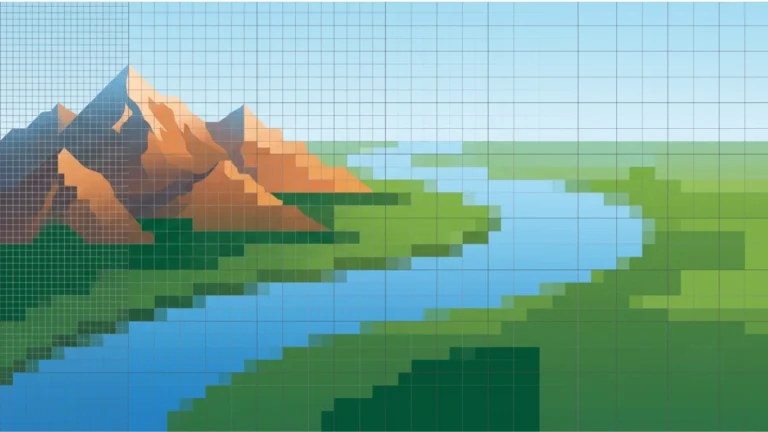
PNG stores images as millions of colored pixels arranged in a fixed grid. Each pixel contains color information, allowing PNG to display highly detailed graphics, screenshots, and illustrations.
Because PNG preserves every pixel using lossless compression, image quality remains excellent. However, enlarging a PNG beyond its original size stretches those pixels, leading to visible blurriness or pixelation.
Main Differences Between SVG and PNG
The biggest difference between SVG and PNG is that SVG is a vector format, while PNG is a raster format.
This single distinction affects nearly every aspect of image quality, scalability, editing, performance, and website optimization.
| Category | SVG | PNG |
|---|---|---|
| Technology | Vector Graphics | Pixel-Based Graphics |
| Scaling | Infinite | Fixed Resolution |
| Website Speed | Excellent | Good |
| Editing | Easy | Image Editor Required |
| Animation | Supported | Not Supported |
| Responsive Design | Excellent | Limited |
SVG vs PNG Quality Comparison
When comparing SVG vs PNG, many people assume one format always provides better quality. In reality, the answer depends on the type of image.
SVG delivers perfect quality for logos, icons, illustrations, and simple graphics because it can scale infinitely without losing sharpness. PNG, however, is better for detailed raster graphics, screenshots, and artwork containing complex textures or effects.
SVG vs PNG for Websites
Choosing between SVG vs PNG can significantly affect your website’s performance, loading speed, and user experience. While both formats are excellent for web design, they serve different purposes.
SVG files are generally much smaller than PNG files for simple graphics because they contain mathematical instructions instead of thousands of pixels. Smaller files mean faster page loading, reduced bandwidth usage, and improved Core Web Vitals.
PNG images, however, are better suited for graphics that contain complex colors, textures, shadows, or effects that cannot be recreated as vector shapes.
SVG vs PNG File Size
One of the biggest advantages of SVG is its small file size for simple graphics.
Since SVG stores instructions instead of pixels, a simple logo may only require a few kilobytes. A PNG version of the same logo may be several times larger because every pixel must be stored.
However, if an image contains thousands of complex shapes or illustrations, the SVG file can become larger than an equivalent PNG.
| Image Type | Typical SVG Size | Typical PNG Size |
|---|---|---|
| Company Logo | 5–30 KB | 50–300 KB |
| Simple Icon | 1–10 KB | 10–80 KB |
| Illustration | 20–200 KB | 150–700 KB |
| Screenshot | Not Recommended | 300 KB–2 MB |
Winner: SVG (for logos and icons)
SVG vs PNG for Logos
Logos are one of the best use cases for SVG.
Whether your logo appears on a smartphone, desktop monitor, or 4K display, an SVG logo always remains perfectly sharp because it is resolution-independent.
A PNG logo is created at a fixed size. Enlarging it beyond its original dimensions causes visible pixelation and reduced image quality.
| Logo Feature | SVG | PNG |
|---|---|---|
| Scales Without Quality Loss | ✅ | ❌ |
| Responsive Design | Excellent | Good |
| Transparent Background | ✅ | ✅ |
| High-DPI Displays | Perfect | Depends on Resolution |
| Website Logo | ⭐⭐⭐⭐⭐ | ⭐⭐⭐ |
Winner for Logos: SVG
SVG vs PNG for Icons
Modern websites often display dozens of icons across menus, buttons, and navigation bars.
SVG icons remain crystal clear on every device and usually have extremely small file sizes. Designers can also change their colors using CSS without editing the original image.
PNG icons work well but require multiple image sizes for different screen resolutions.
- Navigation icons
- Social media icons
- Search icons
- Shopping cart icons
- Menu icons
- UI controls
Winner: SVG
SVG vs PNG Image Quality
When comparing image quality, the answer depends entirely on the type of image.
SVG Quality
- Perfect at every resolution.
- No pixelation.
- Ideal for shapes and text.
- Sharp on Retina and 4K displays.
PNG Quality
- Excellent within its original dimensions.
- May become blurry when enlarged.
- Better for detailed raster artwork.
- Maintains quality using lossless compression.
SVG vs PNG Transparency
Both SVG and PNG support transparent backgrounds, making them suitable for logos and web graphics.
The difference is that SVG transparency is created through vector shapes, while PNG transparency is stored on a pixel-by-pixel basis.
| Transparency Feature | SVG | PNG |
|---|---|---|
| Transparent Background | ✅ | ✅ |
| Semi-Transparency | ✅ | ✅ |
| Transparent Logo | Excellent | Excellent |
SVG vs PNG Browser Compatibility
Modern browsers fully support both SVG and PNG.
SVG is supported by Chrome, Firefox, Safari, Edge, Opera, and most mobile browsers. PNG has been supported for many years and remains universally compatible.
| Browser | SVG | PNG |
|---|---|---|
| Google Chrome | ✅ | ✅ |
| Microsoft Edge | ✅ | ✅ |
| Mozilla Firefox | ✅ | ✅ |
| Safari | ✅ | ✅ |
| Opera | ✅ | ✅ |
Winner: Tie
SVG vs PNG for Printing
If you’re creating business cards, banners, posters, or marketing materials, SVG is usually the better option because it scales without losing quality.
PNG files can produce excellent prints if exported at a sufficiently high resolution, but enlarging a low-resolution PNG often leads to blurry or pixelated results.
| Printing Task | Best Format |
|---|---|
| Business Logo | SVG |
| Flyers | SVG |
| Posters | SVG |
| Digital Artwork | PNG |
| Screenshots | PNG |
SVG vs PNG for Editing
SVG files are much easier to edit when working with logos, icons, and illustrations. Individual shapes, colors, and text can be modified without affecting image quality.
PNG images require raster editing software, and significant modifications often involve redrawing or retouching pixels.
| Editing Feature | SVG | PNG |
|---|---|---|
| Resize Without Quality Loss | ⭐⭐⭐⭐⭐ | ⭐⭐ |
| Edit Colors | Easy | Moderate |
| Edit Shapes | Easy | Difficult |
| Edit Pixels | Not Applicable | Excellent |
SVG vs PNG: Pros and Cons
Advantages of SVG
- Infinite scalability
- Very small file sizes for simple graphics
- Perfect for responsive websites
- Supports animation
- CSS and JavaScript compatible
- Excellent for SEO and performance
Disadvantages of SVG
- Not suitable for photographs
- Complex artwork may increase file size
- Requires vector editing software for advanced editing
Advantages of PNG
- Excellent image quality
- Lossless compression
- Supports transparency
- Ideal for screenshots
- Perfect for detailed graphics
Disadvantages of PNG
- Larger file sizes
- Can become pixelated when enlarged
- Not scalable like SVG
Complete SVG vs PNG Comparison
| Feature | SVG | PNG |
|---|---|---|
| Image Type | Vector | Raster |
| Quality After Scaling | Perfect | May Lose Quality |
| Transparency | ✅ | ✅ |
| Animation Support | ✅ | ❌ |
| Photographs | ❌ | ⭐⭐⭐⭐⭐ |
| Logos | ⭐⭐⭐⭐⭐ | ⭐⭐⭐ |
| Icons | ⭐⭐⭐⭐⭐ | ⭐⭐⭐ |
| Screenshots | ❌ | ⭐⭐⭐⭐⭐ |
| Website Performance | Excellent | Good |
| File Size | Usually Smaller | Usually Larger |
Does SVG or PNG Affect SEO?
Yes—but not in the way many people think.
Google does not rank a page higher simply because it uses SVG or PNG. Instead, the image format can influence important ranking factors such as page speed, Core Web Vitals, user experience, and accessibility.
For example, a lightweight SVG logo may load much faster than a PNG version of the same logo. Faster-loading pages often provide a better user experience, which can positively influence SEO.
However, SVG is not always the better choice. PNG remains the preferred format for screenshots, detailed graphics, and images that cannot be recreated as vector graphics.
SVG vs PNG for Website Speed
Website speed is one of the most important ranking signals for modern search engines. Since image files often account for the largest portion of a webpage, choosing the right format can noticeably improve loading performance.
SVG files are generally much smaller than PNG files when used for simple graphics, helping reduce bandwidth usage and improving Core Web Vitals.
| Performance Factor | SVG | PNG |
|---|---|---|
| Average File Size | Very Small | Medium to Large |
| Loading Speed | Excellent | Good |
| Core Web Vitals | Excellent | Good |
| Bandwidth Usage | Low | Higher |
| Mobile Performance | Excellent | Good |
Winner: SVG
SVG vs PNG for Responsive Web Design
Modern websites must display perfectly on smartphones, tablets, laptops, and large desktop monitors.
SVG is naturally responsive because it scales infinitely without losing quality. A single SVG file works across all screen sizes without creating multiple image versions.
PNG images, however, are resolution-dependent. Developers often need to generate several image sizes to ensure they look sharp on different devices.
- Responsive logos
- Navigation icons
- Website buttons
- Vector illustrations
- Dashboard graphics
Winner: SVG
SVG vs PNG for Accessibility
Accessibility is another important consideration when building modern websites.
Both SVG and PNG can be made accessible using meaningful alternative text (alt attributes). SVG offers additional accessibility advantages because text inside an SVG can remain searchable and, in some cases, readable by assistive technologies when implemented correctly.
To improve accessibility:
- Always add descriptive alt text.
- Avoid using images that contain important text when HTML text can be used instead.
- Ensure sufficient color contrast.
- Use meaningful filenames.
When Should You Use SVG?
SVG is the best choice whenever an image consists of shapes, lines, icons, or text that must remain sharp at every size.
Use SVG for:
- Company logos
- Website headers
- Navigation icons
- Social media icons
- Illustrations
- Flowcharts
- Infographics
- Maps
- Buttons
- Vector artwork
When Should You Use PNG?
PNG is the better option when an image contains detailed pixels that cannot be accurately represented as vector graphics.
Choose PNG for:
- Screenshots
- Application interfaces
- Digital paintings
- Product mockups
- Detailed illustrations
- Images with textures
- Complex artwork
- Transparent raster graphics
Common Myths About SVG vs PNG
Myth 1: SVG Is Better for Every Image
Reality: SVG is excellent for vector graphics but cannot replace raster images such as photographs or detailed screenshots.
Myth 2: PNG Is Outdated
Reality: PNG remains one of the most widely used formats for transparent graphics, screenshots, and digital artwork.
Myth 3: SVG Always Has a Smaller File Size
Reality: SVG files are usually smaller for simple graphics, but highly detailed vector illustrations can become larger than PNG files.
Myth 4: PNG Has Better Quality Than SVG
Reality: Neither format is universally better. SVG delivers perfect quality for vector graphics, while PNG excels at detailed raster images.
Can You Convert SVG to PNG?
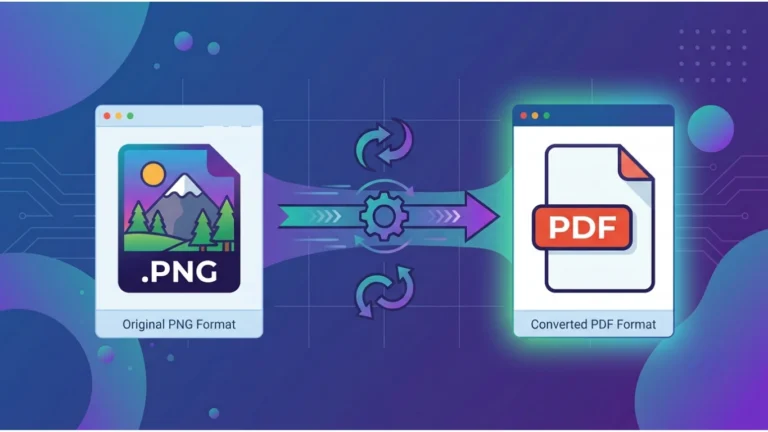
Yes. SVG files can easily be exported as PNG images using graphic design software or online conversion tools.
This is useful when:
- You need a fixed-size image.
- An application does not support SVG.
- You are sharing graphics on platforms that require PNG.
Keep in mind that once exported, the PNG will no longer scale infinitely like the original SVG.
Can You Convert PNG to SVG?
Technically, yes—but the results depend on the image.
Simple logos, icons, and illustrations can often be traced into SVG format with excellent results.
However, converting photographs or complex screenshots into SVG usually produces poor results because vector graphics are not designed to represent millions of pixels.
Best Practices for SVG and PNG Optimization
- Use SVG for logos, icons, and scalable graphics.
- Use PNG for screenshots and detailed raster images.
- Compress PNG files before uploading.
- Minify SVG files to remove unnecessary code.
- Write descriptive filenames.
- Add meaningful alt text for every image.
- Use responsive image techniques where appropriate.
- Enable browser caching.
- Lazy-load below-the-fold images.
- Test website performance with PageSpeed Insights.
Frequently Asked Questions
Is SVG better than PNG?
SVG is better for logos, icons, and scalable graphics. PNG is better for screenshots, detailed artwork, and raster images.
Does SVG improve SEO?
SVG can contribute to better SEO indirectly by reducing file size, improving loading speed, and enhancing Core Web Vitals.
Why is SVG usually smaller than PNG?
SVG stores mathematical instructions instead of pixels, making it highly efficient for simple graphics.
Can SVG replace PNG?
No. SVG cannot replace PNG for photographs, screenshots, or detailed raster graphics.
Which format is best for logos?
SVG is the preferred format because it scales infinitely without losing quality.
Which format is better for screenshots?
PNG is the better choice because screenshots contain pixel-based information that SVG cannot accurately represent.
Final Verdict: SVG vs PNG
When comparing SVG vs PNG, there isn’t a single winner because each format is designed for different purposes. The right choice depends on the type of image you’re using and where it will be displayed.
SVG is the best option for logos, icons, illustrations, buttons, charts, and other vector graphics. It scales infinitely without losing quality, usually has a smaller file size, supports CSS styling and animations, and helps improve website performance.
PNG, on the other hand, is the better choice for screenshots, digital artwork, product mockups, and graphics with complex details or textures. Its lossless compression preserves image quality while supporting transparent backgrounds.
For most modern websites, the ideal approach is to use both formats together.
- Use SVG for logos, icons, UI elements, illustrations, and scalable graphics.
- Use PNG for screenshots, detailed graphics, transparent raster images, and artwork.
Choosing the correct image format helps improve website speed, user experience, SEO, and visual quality across all devices.
Quick Decision Guide
| If You Need… | Best Format | Reason |
|---|---|---|
| Company Logo | SVG | Scales perfectly at every size. |
| Website Icons | SVG | Sharp on all screen resolutions. |
| Responsive Graphics | SVG | Resolution independent. |
| Transparent Screenshot | PNG | Preserves pixel detail. |
| Product Mockup | PNG | Excellent image quality. |
| Illustration | SVG | Easy to edit and resize. |
| Complex Digital Artwork | PNG | Better for raster graphics. |
| Fast Website Loading | SVG | Usually much smaller file size. |
Best Practices for Using SVG and PNG
- Use SVG whenever the image is a logo, icon, or illustration.
- Use PNG for screenshots, UI mockups, and detailed graphics.
- Compress PNG files before uploading to improve page speed.
- Optimize SVG code by removing unnecessary metadata.
- Add descriptive filenames such as
svg-vs-png-logo-comparison.svg. - Write meaningful alt text for every image.
- Specify image width and height to reduce layout shifts.
- Enable lazy loading for below-the-fold images.
- Use responsive image techniques where appropriate.
- Regularly test your website using Google PageSpeed Insights.
Common Mistakes to Avoid
- Using PNG logos instead of SVG on modern websites.
- Converting photographs into SVG files.
- Uploading oversized PNG images without compression.
- Scaling low-resolution PNG images beyond their original size.
- Ignoring descriptive alt text and image filenames.
- Using SVG for highly detailed raster artwork.
- Uploading images much larger than the display size.
Related Image Optimization Guides
Continue improving your website’s image performance with these helpful guides:
Frequently Asked Questions
Which is better: SVG or PNG?
SVG is better for logos, icons, and scalable graphics, while PNG is better for screenshots, detailed graphics, and raster artwork.
Is SVG better for SEO?
SVG can improve SEO indirectly because smaller files load faster, improving Core Web Vitals and user experience.
Can SVG replace PNG?
No. SVG is not suitable for photographs or detailed raster images. PNG remains the better option for those use cases.
Does SVG support transparency?
Yes. SVG fully supports transparent backgrounds, just like PNG.
Why do web designers prefer SVG?
SVG files are scalable, lightweight, editable, responsive, and often smaller than PNG files for logos and icons.
Can I convert PNG to SVG?
Yes, but only simple graphics such as logos and icons convert well. Complex images and photographs usually do not.
Recommended Image Alt Text
| Image | SEO Alt Text |
|---|---|
| SVG Logo Example | SVG logo scaled without losing image quality. |
| PNG Screenshot | PNG screenshot showing sharp pixel-based graphics. |
| Comparison Chart | SVG vs PNG comparison table for websites and SEO. |
| File Size Comparison | SVG and PNG file size comparison for web optimization. |
| Website Performance Graphic | SVG vs PNG website performance and loading speed comparison. |
| Scalability Example | SVG image remaining sharp after resizing compared with PNG. |
Key Takeaways
- SVG is a vector image format that scales infinitely without losing quality.
- PNG is a raster format that provides excellent image quality for screenshots and detailed graphics.
- SVG usually produces smaller file sizes for logos and icons.
- PNG is better for images containing textures, gradients, and complex pixel details.
- Both SVG and PNG support transparent backgrounds.
- Using SVG for logos and PNG for screenshots is considered a best practice for modern websites.
- Optimizing image formats improves website speed, user experience, and SEO.