HEIC to PNG: How to Convert HEIC to PNG Online for Free (Complete Guide 2026)
HEIC to PNG
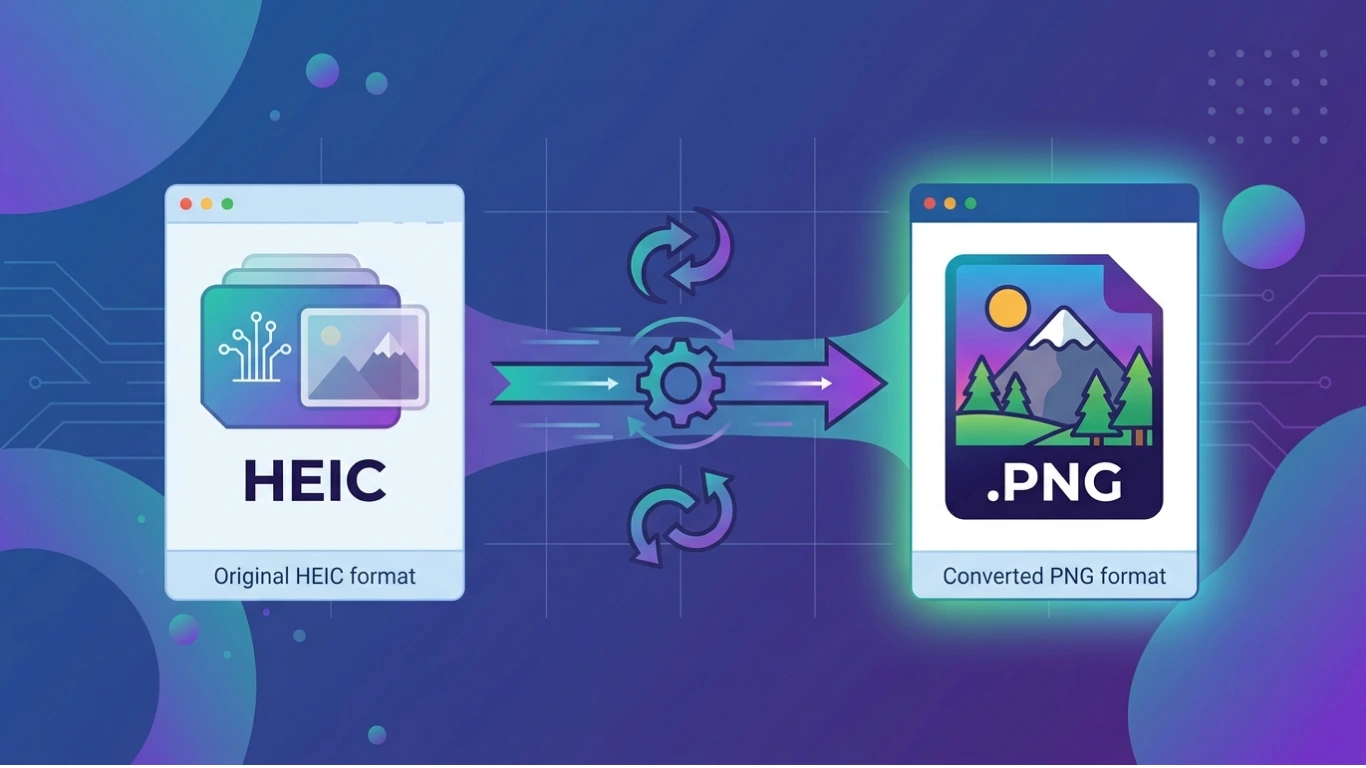
If you’re searching for an easy way to convert HEIC to PNG, you’ve come to the right place. HEIC (High Efficiency Image Container) is Apple’s default image format for iPhones and iPads, while PNG (Portable Network Graphics) is one of the most widely supported image formats across websites, applications, and operating systems.
Although HEIC files provide excellent image quality with smaller file sizes, many websites, software applications, and older devices do not fully support them. Converting HEIC images to PNG improves compatibility while preserving excellent image quality.
In this comprehensive guide, you’ll learn what HEIC and PNG files are, why people convert HEIC to PNG, the best conversion methods, and expert tips to achieve the highest-quality results.
Featured Snippet: What Is HEIC to PNG?
HEIC to PNG is the process of converting an HEIC (High Efficiency Image Container) file into a PNG (Portable Network Graphics) image. This conversion improves compatibility with Windows, Android, websites, graphic design software, and online platforms while maintaining high image quality. PNG is especially useful when transparency or broad software support is required.
Table of Contents
- What Is an HEIC File?
- What Is a PNG File?
- What Is HEIC to PNG?
- Why Convert HEIC to PNG?
- HEIC vs PNG Comparison
- How to Convert HEIC to PNG
- Best HEIC to PNG Converter Tools
- Frequently Asked Questions
- Conclusion
What Is an HEIC File?
HEIC (High Efficiency Image Container) is an image format developed using the High Efficiency Image File (HEIF) standard. Apple introduced HEIC as the default photo format on iPhones and iPads because it stores high-quality images while using significantly less storage space than JPEG.
HEIC files are commonly used for:
- iPhone and iPad photos
- Live Photos
- Portrait mode images
- High-resolution mobile photography
- Cloud photo storage
- Apple ecosystem devices
Although HEIC is efficient, some websites, editing programs, printers, and older devices cannot open HEIC files without conversion.
What Is a PNG File?
PNG (Portable Network Graphics) is a widely supported raster image format that uses lossless compression. It preserves image quality while supporting transparent backgrounds, making it ideal for websites, logos, screenshots, presentations, and graphic design.
PNG files are commonly used for:
- Website graphics
- Company logos
- Icons
- Screenshots
- Digital artwork
- Presentations
- Product images
- Marketing materials
PNG uses lossless compression, which means image quality is preserved even after saving and editing the file multiple times.
What Is HEIC to PNG?
HEIC to PNG is the process of converting Apple’s HEIC image format into the PNG format. This makes the image easier to open, edit, share, print, and upload to websites that do not fully support HEIC files.
The conversion is commonly performed using online converters, desktop software, or built-in tools on Windows, macOS, and iPhone.
Why Convert HEIC to PNG?
Many users convert HEIC images into PNG format to improve compatibility with software, websites, and devices while maintaining excellent image quality.
Benefits include:
- Universal compatibility.
- Lossless image quality.
- Support for transparent backgrounds.
- Easy editing in graphic design software.
- Better compatibility with websites.
- Simple file sharing.
- Reliable printing results.
Common Uses of HEIC to PNG Conversion
| Industry | Why PNG Is Preferred |
|---|---|
| Web Development | Supported by all major browsers. |
| Graphic Design | Supports transparency and lossless editing. |
| Digital Marketing | Easy to upload across platforms. |
| Education | Compatible with presentations and documents. |
| Business | Works across Windows and Mac systems. |
| Photography | Preserves image quality during editing. |
| Publishing | Suitable for digital content creation. |
| Social Media | Accepted by most online platforms. |
HEIC vs PNG: Quick Comparison
| Feature | HEIC | PNG |
|---|---|---|
| Image Type | Raster | Raster |
| Compression | High Efficiency | Lossless |
| Transparency | Limited | Yes |
| Compatibility | Apple devices primarily | Almost Universal |
| Editing Support | Limited in older software | Excellent |
| Best For | iPhone photo storage | Web graphics and editing |
| File Size | Smaller | Larger |
Who Should Convert HEIC to PNG?
HEIC to PNG conversion is especially useful for:
- iPhone users
- Graphic designers
- Web developers
- Photographers
- Digital marketers
- Business professionals
- Students
- Content creators
- Teachers
- Bloggers
Benefits of PNG Over HEIC
- Works on almost every operating system.
- Compatible with nearly all image editors.
- Supports transparent backgrounds.
- Ideal for websites and online publishing.
- Maintains excellent image quality.
- Perfect for screenshots and graphics.
- Easy to share and upload.
How to Convert HEIC to PNG
There are several ways to convert HEIC to PNG, depending on the device you’re using. You can use an online converter, built-in tools on Windows and Mac, your iPhone, or professional image editing software. The best method depends on whether you need a quick conversion or advanced editing features.
Below are the most reliable methods for converting HEIC images into PNG format while maintaining excellent image quality.
Method 1: Use an Online HEIC to PNG Converter
An online HEIC to PNG converter is the fastest solution because it works directly in your web browser without installing software.
Steps
- Open a trusted HEIC to PNG converter.
- Upload your HEIC image.
- Select PNG as the output format.
- Click Convert.
- Wait for the conversion to finish.
- Download the PNG image.
Advantages
- No software installation.
- Works on Windows, macOS, Linux, Android, and iPhone.
- Simple drag-and-drop interface.
- Supports batch conversion on many tools.
- Quick results.
Limitations
- Requires an internet connection.
- Some free tools limit file size.
- Privacy may be a concern for sensitive images.
Method 2: Convert HEIC to PNG on Windows
Windows users can convert HEIC images using Microsoft Paint, the Photos app, or third-party software after installing HEIC support if necessary.
Steps
- Open the HEIC image in Microsoft Paint or another supported application.
- Select File → Save As.
- Choose PNG Picture (*.png).
- Select a save location.
- Click Save.
Method 3: Convert HEIC to PNG on Mac
macOS includes built-in support for HEIC images, making conversion easy with Preview.
Steps
- Open the HEIC image in Preview.
- Select File → Export.
- Choose PNG as the format.
- Select the destination folder.
- Click Save.
This is one of the quickest ways to convert HEIC files while preserving image quality.
Method 4: Convert HEIC to PNG on iPhone
Although iPhones save photos as HEIC by default, you can convert them into PNG using apps, the Files app, or online conversion tools.
Steps
- Open a trusted HEIC to PNG converter in Safari.
- Upload your HEIC photo.
- Select PNG as the output format.
- Convert the image.
- Download and save the PNG file.
You can also use image editing apps that support PNG export.
Method 5: Convert HEIC to PNG Using ImageToolkitPro
If your website offers a HEIC to PNG converter, visitors can upload HEIC photos directly, convert them to PNG format, and download the converted files without installing any software.
Benefits include:
- Fast browser-based conversion.
- No software installation.
- Works on desktop and mobile devices.
- Simple user interface.
- High-quality PNG output.
Best HEIC to PNG Converter Tools
| Converter | Free | Best For |
|---|---|---|
| Online HEIC to PNG Converter | Yes | Quick online conversions. |
| Microsoft Paint | Yes | Windows users. |
| Preview (macOS) | Yes | Mac users. |
| Adobe Photoshop | No | Professional editing. |
| ImageToolkitPro | Yes | Browser-based conversion. |
HEIC vs PNG: Detailed Comparison
| Feature | HEIC | PNG |
|---|---|---|
| Compression | High Efficiency | Lossless |
| Transparency | Limited | Supported |
| Compatibility | Mainly Apple devices | Nearly universal |
| Editing Support | Limited | Excellent |
| Web Support | Limited | Excellent |
| Printing | Good | Excellent |
| File Size | Smaller | Larger |
Advantages of Converting HEIC to PNG
- Better compatibility across devices.
- Works with almost all image editors.
- Ideal for websites and blogs.
- Supports transparent backgrounds.
- Preserves image quality.
- Easy sharing and printing.
- Reliable long-term file support.
Limitations of HEIC to PNG Conversion
- PNG files are usually larger than HEIC files.
- Multiple images require additional storage space.
- Batch conversion may require specialised software.
- Transparency is only useful if required by the image.
- Some online tools have upload limits.
Best Practices for HEIC to PNG Conversion
- Keep the original HEIC file as a backup.
- Use trusted conversion software.
- Convert only when PNG compatibility is required.
- Batch convert multiple images to save time.
- Verify image quality after conversion.
- Store PNG files in organised folders.
Best Practices for HEIC to PNG Conversion
Converting HEIC to PNG is straightforward, but following a few best practices will help you preserve image quality, improve compatibility, and make your images easier to use across different devices and applications.
- Keep the original HEIC file as a backup.
- Use a trusted HEIC to PNG converter.
- Convert images only when PNG is required.
- Check image quality after conversion.
- Organise converted PNG files into folders.
- Use batch conversion for multiple images.
- Optimise PNG files before uploading to websites.
HEIC to PNG for Websites
Many websites and content management systems do not fully support HEIC images. Converting HEIC photos into PNG format ensures better browser compatibility and simplifies uploading to blogs, online stores, and business websites.
Common website uses include:
- Blog featured images
- Product photos
- Company logos
- Website banners
- Icons
- Screenshots
- Infographics
HEIC to PNG for Graphic Design
Graphic designers often convert HEIC images into PNG format because PNG is supported by almost every professional design application. PNG files are also easier to edit, share, and integrate into design projects.
Popular design applications include:
- Adobe Photoshop
- Adobe Illustrator
- CorelDRAW
- Canva
- Affinity Designer
- Figma
HEIC to PNG for Printing
Many print shops prefer receiving PNG images because they are widely supported by printing software. PNG files preserve image quality and are suitable for posters, flyers, brochures, business cards, and marketing materials.
Typical printing applications include:
- Business cards
- Flyers
- Posters
- Catalogues
- Product packaging
- Promotional materials
HEIC to PNG for Social Media
Some social media platforms automatically convert uploaded images, while others may not fully support HEIC. Converting HEIC to PNG ensures consistent compatibility across popular platforms.
Examples include:
- X (Twitter)
- Telegram
Image Quality Tips
| Tip | Benefit |
|---|---|
| Keep the Original HEIC | Provides a backup if needed. |
| Use a Trusted Converter | Produces reliable PNG files. |
| Optimise PNG Images | Reduces file size for web use. |
| Check Image Resolution | Ensures sharp image quality. |
| Preview Before Sharing | Confirms successful conversion. |
Common HEIC to PNG Conversion Errors
| Error | Cause | Solution |
|---|---|---|
| Image Cannot Open | Corrupted HEIC file. | Try another converter. |
| Poor Image Quality | Low-quality source image. | Use the original HEIC file. |
| Large PNG File | Lossless PNG compression. | Optimise the PNG image. |
| Slow Upload | Large PNG size. | Resize or compress the image. |
| Conversion Failed | Unsupported converter. | Use a modern HEIC converter. |
| Colours Look Different | Colour profile differences. | Use professional editing software. |
Tips for Better HEIC to PNG Results
- Always convert from the original HEIC image.
- Choose a reliable conversion tool.
- Compress PNG files for websites.
- Avoid repeated editing and exporting.
- Store both HEIC and PNG versions.
- Verify colours after conversion.
- Test images on multiple devices.
- Use batch conversion for photo libraries.
Who Should Convert HEIC to PNG?
| User | Why Convert? |
|---|---|
| iPhone Users | Improve compatibility with Windows and websites. |
| Graphic Designers | Edit images in design software. |
| Web Developers | Upload compatible website images. |
| Photographers | Share images with clients. |
| Business Owners | Create marketing materials. |
| Students | Insert images into assignments and presentations. |
| Content Creators | Publish photos across multiple platforms. |
| Digital Marketers | Use compatible graphics for campaigns. |
Frequently Asked Questions (FAQs)
Can I convert HEIC to PNG for free?
Yes. Many online HEIC to PNG converters and desktop applications allow free image conversion.
Will converting HEIC to PNG reduce image quality?
No. PNG uses lossless compression, so the converted image maintains excellent visual quality.
Why is my PNG file larger than the HEIC file?
HEIC uses highly efficient compression, while PNG prioritises image quality using lossless compression, which usually results in larger file sizes.
Can Windows open HEIC files?
Yes, but some versions of Windows require the HEIF Image Extensions before opening HEIC images.
Is PNG better than HEIC?
PNG is better for compatibility, websites, editing, and transparency. HEIC is better for storing photos efficiently on Apple devices.
Can I convert multiple HEIC files at once?
Yes. Many online converters and desktop applications support batch conversion for multiple HEIC images.
Which format is best for websites?
PNG is generally the better choice because it is supported by all major web browsers and content management systems.
HEIC to PNG Conversion Checklist
| Task | Recommendation |
|---|---|
| Keep Original HEIC | Maintain a backup copy. |
| Choose PNG Output | Improve compatibility. |
| Optimise PNG | Reduce file size for websites. |
| Check Resolution | Ensure image quality. |
| Preview Converted Image | Verify successful conversion. |
| Use Batch Conversion | Save time with multiple files. |
| Store Both Versions | Maintain editing flexibility. |
| Test Compatibility | Ensure the PNG works across devices and applications. |
Conclusion: Choosing the Best HEIC to PNG Converter
Converting HEIC to PNG is one of the easiest ways to improve image compatibility across Windows, macOS, Android, websites, design software, and online platforms. While HEIC is excellent for saving storage space on Apple devices, PNG is supported almost everywhere and preserves image quality using lossless compression.
Whether you choose an online HEIC to PNG converter, Windows, Preview on macOS, Adobe Photoshop, or your own ImageToolkitPro converter, you’ll be able to create PNG files that are easy to edit, share, upload, and print.
If you regularly work with iPhone photos, converting HEIC images into PNG format ensures maximum compatibility while maintaining sharp image quality for professional and personal use.
Use HEIC to save storage space on Apple devices, but convert HEIC to PNG whenever you need universal compatibility, lossless image quality, transparency support, or easier editing.
HEIC to PNG Quick Reference
| Question | Answer |
|---|---|
| Input Format | HEIC (High Efficiency Image Container) |
| Output Format | PNG (Portable Network Graphics) |
| Image Type | Raster to Raster |
| Best Free Tool | Online HEIC to PNG Converter |
| Professional Software | Adobe Photoshop |
| Best For | Websites, Editing, Printing, Sharing |
| Transparency Support | PNG Supports Transparency |
| Works Online | Yes |
When Should You Convert HEIC to PNG?
- Uploading photos to websites.
- Editing images in graphic design software.
- Sharing files with Windows users.
- Creating presentations and documents.
- Printing marketing materials.
- Publishing blog images.
- Using images that require transparency.
- Improving compatibility across devices.
Related Articles
You may also find these image conversion guides helpful:
SEO Image Alt Text Suggestions
| Image | Recommended Alt Text |
|---|---|
| Featured Image | HEIC to PNG converter converting an iPhone HEIC image into a high-quality PNG file. |
| Online Converter | Uploading an HEIC image to an online HEIC to PNG converter. |
| Windows Conversion | Saving an HEIC image as a PNG file on Windows. |
| Mac Preview | Exporting an HEIC photo as a PNG image using Preview on macOS. |
| iPhone Conversion | Converting an HEIC photo into PNG format on an iPhone. |
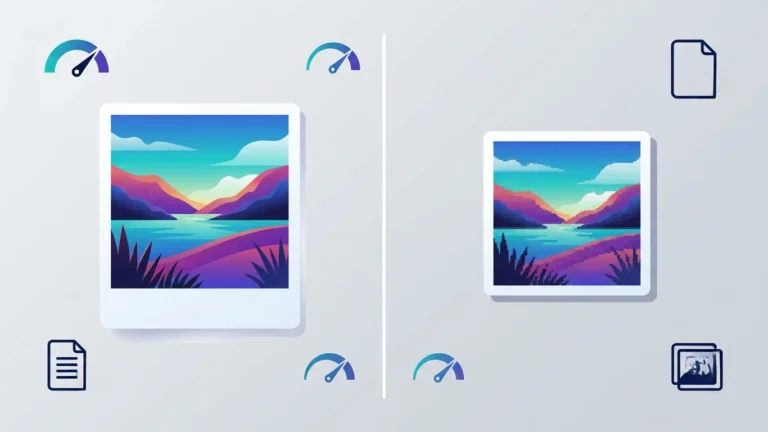
| Comparison Table | Comparison between HEIC and PNG image formats. |
| Website Example | PNG image converted from an HEIC file for website compatibility. |
| Workflow Diagram | Step-by-step HEIC to PNG conversion workflow. |
Target Keywords Included
This article naturally targets the primary keyword HEIC to PNG while incorporating related search terms:
- heic to png
- convert heic to png
- heic to png converter
- heic to png online
- free heic to png converter
- iphone heic to png
- heic image converter
- convert iphone photos to png
- png converter
- heic file to png
- online heic converter
- heic image to png
Frequently Asked Questions
Can I convert HEIC to PNG for free?
Yes. Many online converters and free applications allow you to convert HEIC images into PNG without paying.
Will PNG reduce the quality of my HEIC image?
No. PNG uses lossless compression, helping preserve the image quality during conversion.
Why are PNG files larger than HEIC files?
HEIC uses highly efficient compression, while PNG stores images using lossless compression, which generally produces larger file sizes.
Which is the best HEIC to PNG converter?
Popular choices include online converters, Windows tools, Preview on macOS, Adobe Photoshop, and ImageToolkitPro.
Can I convert multiple HEIC images at once?
Yes. Many online and desktop converters support batch conversion for multiple HEIC files.

One Comment